
 Maria Diaz
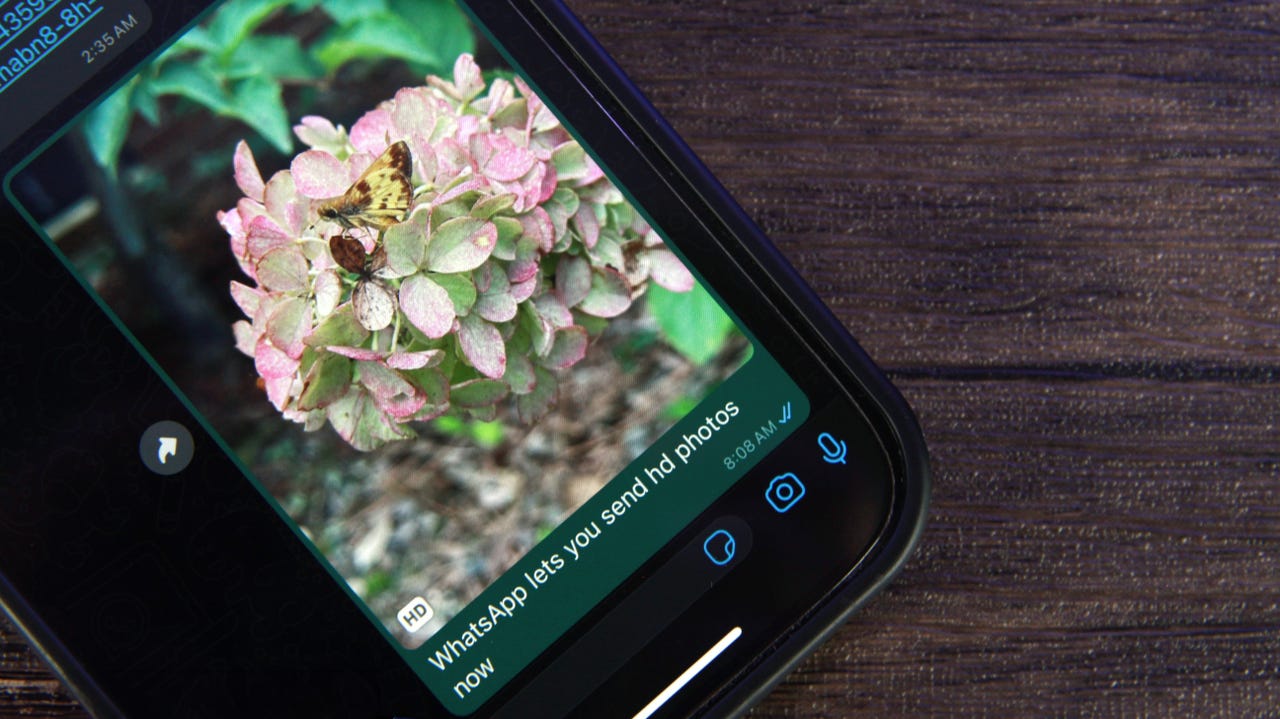
WhatsApp is finally adding the ability to share high-quality photos in chats, a feature that many of its two billion worldwide users have longed for.
Photos shared through WhatsApp messages are notorious for being low quality, as the messaging service heavily compresses them. This was fine back in the Blackberry and iPhone 4 days, but as smartphone cameras improved and screens gain higher resolution, it's become very apparent and, frankly, annoying.
Also: The AI-powered Adobe Express is now generally available
Mark Zuckerberg, CEO of Meta, the parent company of WhatsApp, recently shared the new feature on Facebook. with the caption, "Sharing photos on WhatsApp just got an upgrade - now you can send in HD." High-quality image sharing is only available for photos at this time, not videos.
How to share high-quality photos on WhatsApp
What you'll need: A smartphone with the latest version of WhatsApp (I have version 2.23.15.78).
1. Open a chat
Open the chat where you want to share the HD photos.
2. Tap on the + button to share
Tap on the sharing button within the chat, which is the plus (+) sign at the bottom left corner of the chat window.
3. Choose Photo & Video Library
Select Photo & Video Library to choose an image to share in the chat. You'll be taken to your phone's photo gallery.
4. Select your photo
Choose the image from your photo library to share and tap on it.
5. Tap on HD
Once you've selected your image, tap on the HD button to send it in high quality. The HD button is one of the options on the menu at the top of your photo.
Keep in mind that selecting HD before sending a photo won't change the settings for WhatsApp, so subsequent images you send will default to standard quality. You have to select HD each time you want to send a high-quality photo.
6. Select HD quality
When you tap on HD, you'll see a popup with the option to send the photo in Standard quality or HD quality. Tap on HD quality.
Even though HD photos have a higher resolution and are clearer, they take up more storage space and take slightly longer to send, which is why WhatsApp defaults to compressing them.
7. Send the photo
Send the photo to the chat by tapping the "Send" button in the lower right corner of the screen.
The image will be shared as a high-quality photo, so you can kiss blurry and pixelated images goodbye.
Featured
-
Two breakthroughs made 2023 tech's most innovative year in over a decade
-
AI in 2023: A year of breakthroughs that left no human thing unchanged
-
These 5 major tech advances of 2023 were the biggest game-changers
-
What is Gemini? Everything you should know about Google's new AI model