
 stock.adobe.com
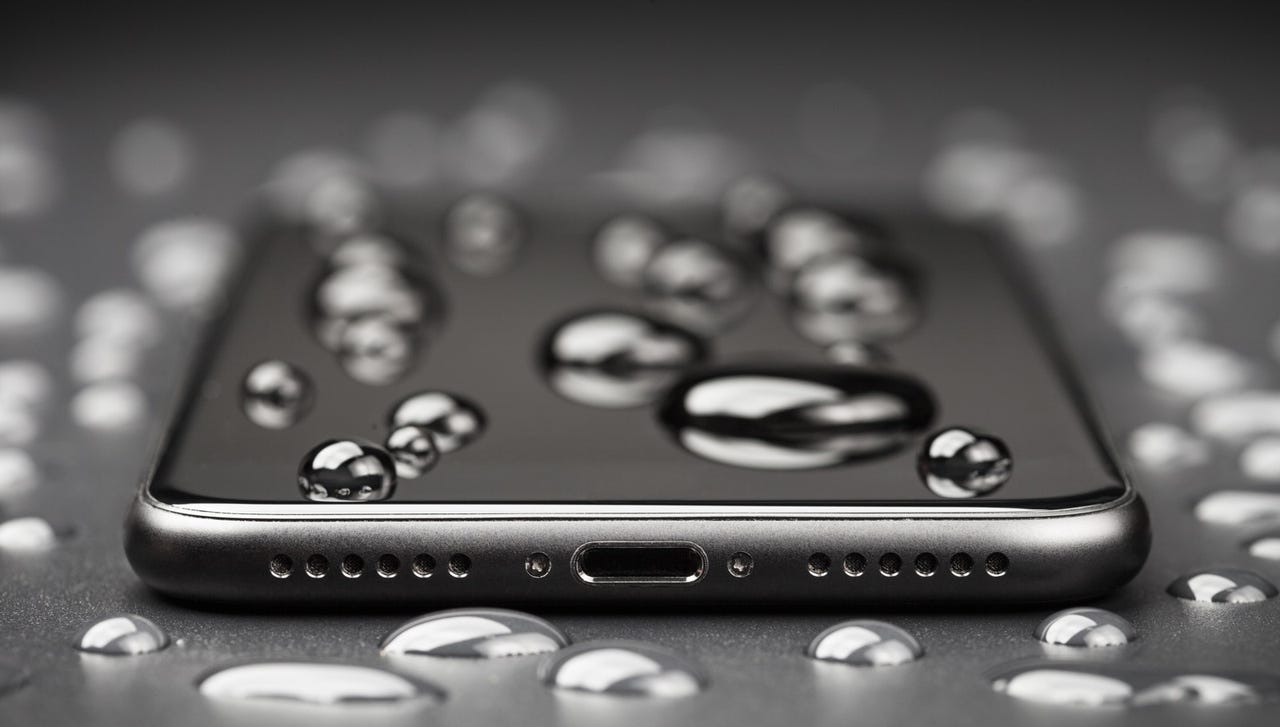
The other day a dreaded thing happened -- I dropped my iPhone into water. Now, the iPhone 14 is rated to IP68, which means the device can go to a maximum depth of six meters for up to 30 minutes, so it wasn't a huge deal. Well, except that I noticed that the speaker was badly muffled afterwards. Clearly, some water had seeped in.
Also: The best iPhones right now
Special Feature
Unlock the Full Power of Your Phone
Today's smartphones continue to add new capabilities to automate and streamline life, entertain us, organize us, and connect us to one another in powerful new ways. Most people aren't taking advantage of many of the features that could help them the most. We help you change that.
Read nowNow, the water wasn't going to damage anything, and I could have just left the iPhone to dry out. But while I was waiting, the muffled speaker made it annoying to make and take phone calls. What I needed was a way to eject the water from the speakers.
The Apple Watch has a feature that uses sound pulses to eject water from the speaker.
It's a cool and effective feature that demuffles the Apple Watch's tiny speaker with a few beeps.
Unfortunately, there's no such feature built into the iPhone. But I found a way to add it, and you can even trigger the feature using Siri.
Also: 5 useful iOS 17 features Apple quietly released at WWDC 2023
Here's how to add this feature.
1. Download the Water Eject shortcut
We're going to use a Shortcut called Water Eject to clean out the speaker. Go to the page on your iPhone and tap Get Shortcut.
2. Add the shortcut
This step will open up the Shortcut app. You can add the shortcut by tapping on Add Shortcut. This process also tells you that saying "Hey Siri, Water Eject" will activate the shortcut.
3. Run Water Eject
You can either say "Hey Siri, Water Eject" or tap the shortcut in the Shortcut app.
Also: This iOS 17 feature may turn your iPhone into the perfect companion
Doing either of these will activate the Shortcut and bring up a pop-up menu. Then tap on Start.
4. Choose the intensity
Then tap on the intensity level you want to use -- level 1 will run the process once, level 2 will do it twice, and level 3 will, predictably, will run it three times. The shortcut will then begin to emit a tone from the speaker.
Importantly, DO NOT wear headphones when running this shortcut.
If you're in any doubt as to how powerful this process is, put your face near the speaker outlet and you'll feel the strong air vibrations that this tone generates.
Also: How to transfer data from Android to an iPhone
And it worked for me, clearing the water out of the speakers restored the audio back to the quality I expected.
See also
-
How to better organize text messages on your iPhone, thanks to iOS 17
-
How to transfer data from Android to an iPhone: 2 simple and fast ways
-
How to turn on 80% charging limit on the iPhone 15 to save battery health
-
How to leave a FaceTime voice or video message when your call goes unanswered