
What to Know
- Delete Edge from Settings > Apps > Installed apps. For most people, though, the uninstall option is greyed out.
- To enable the Uninstall button for Edge, open Registry Editor and change the NoRemove value from 1 to 0.
- Another way to remove Microsoft Edge is with a PowerShell command. Below are two options for doing that.
This article explains how to remove Microsoft Edge from your Windows 11 PC.
How to Fix It When Microsoft Edge Is Not WorkingUninstall Edge in Windows 11 Using Registry Editor
Microsoft makes it easy to delete Edge, but only if you make a really small change to the Windows Registry first. Don't worry, it's easy. Follow these steps if the Uninstall option is greyed out for Edge in Settings:
Most of these steps aren't necessary if you're in a European Economic Area country. Jump to Step 4 if that's you.
-
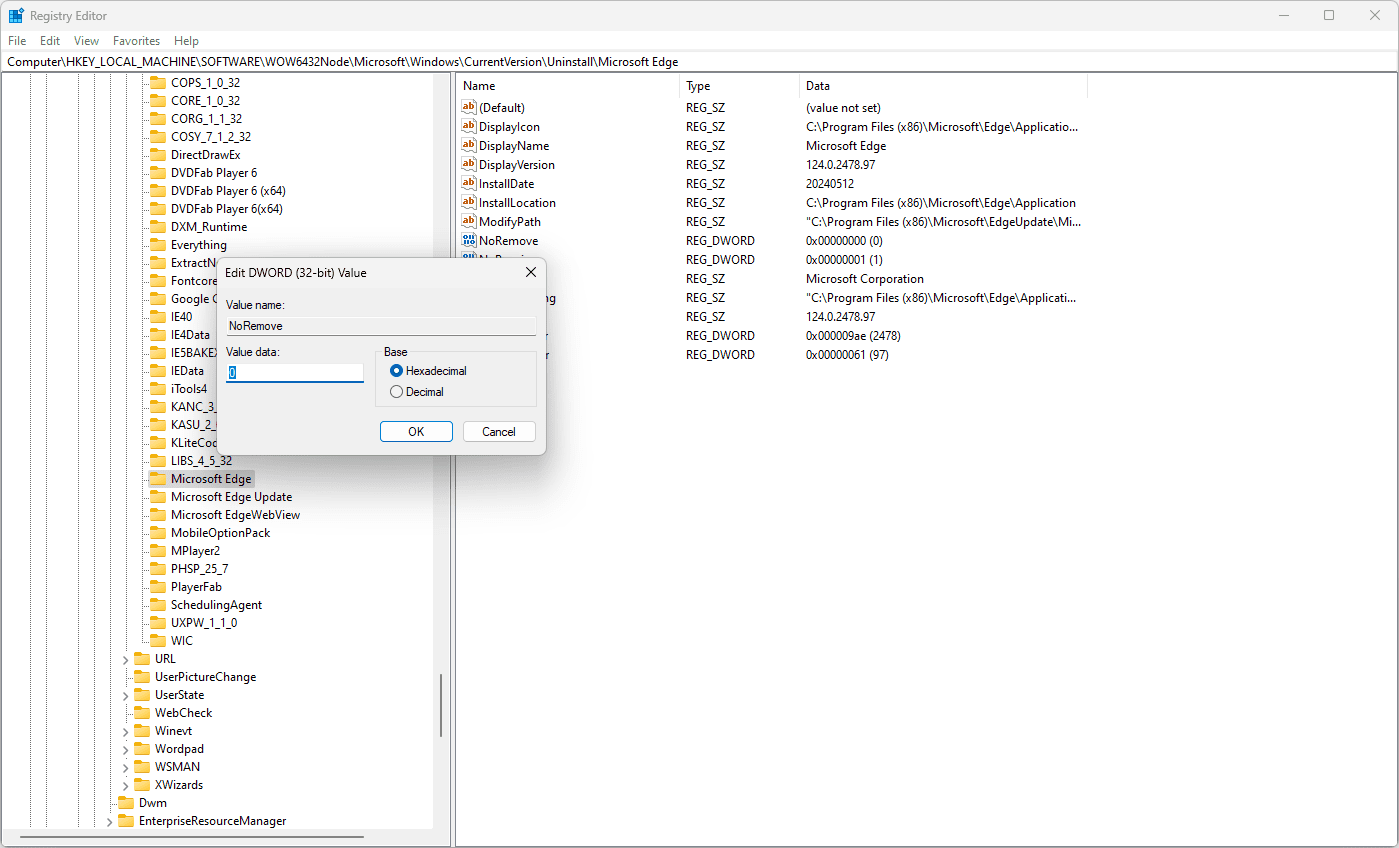
Open the Windows Registry Editor and paste the following into the path at the top of the program. Press Enter to jump to this key:
Computer\HKEY_LOCAL_MACHINE\SOFTWARE\WOW6432Node\Microsoft\Windows\CurrentVersion\Uninstall\Microsoft Edge -
Double-click NoRemove on the right.
-
Change the value to 0 and then press OK.
-
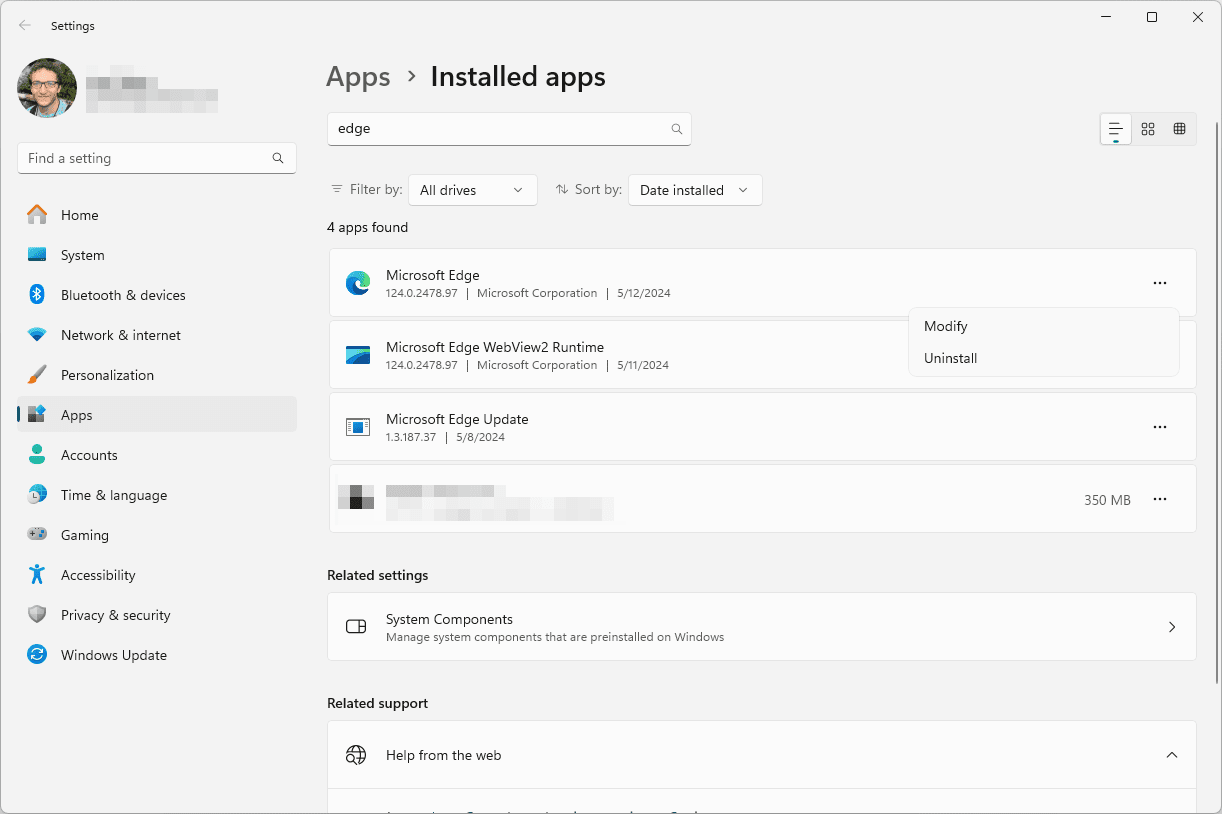
You can now uninstall Edge from Settings > Apps > Installed apps. Press the three dots next to Microsoft Edge, then choose Uninstall.
The PowerShell Command to Uninstall Edge
We recommend using the method explained above. But, if you like to run commands to perform advanced functions like this, you'll first need to find Edge's installation folder. Here's where to find it and how to run a command to delete Microsoft Edge from Windows 11:
-
Open File Explorer (press Win+E to do this quickly). Type or paste this into the address bar of File Explorer and press Enter:
C:\Program Files (x86)\Microsoft\Edge\Application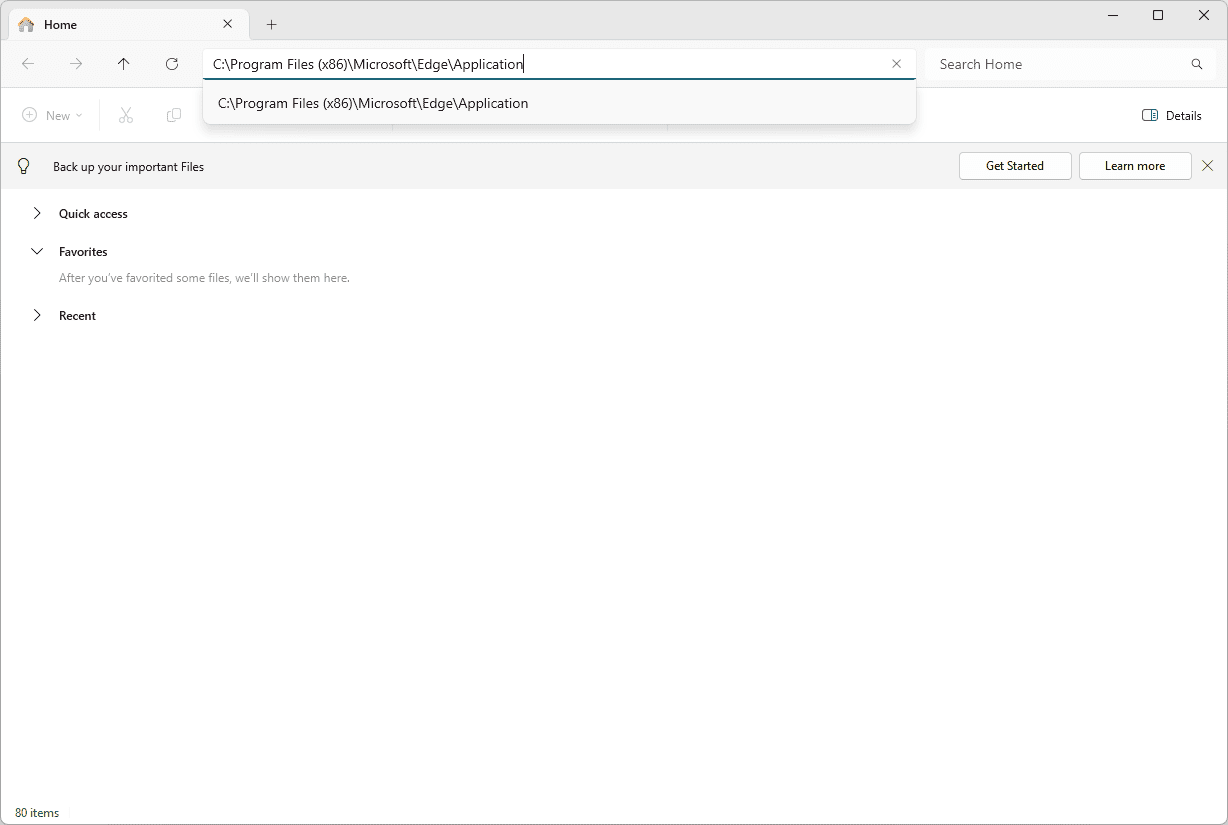
-
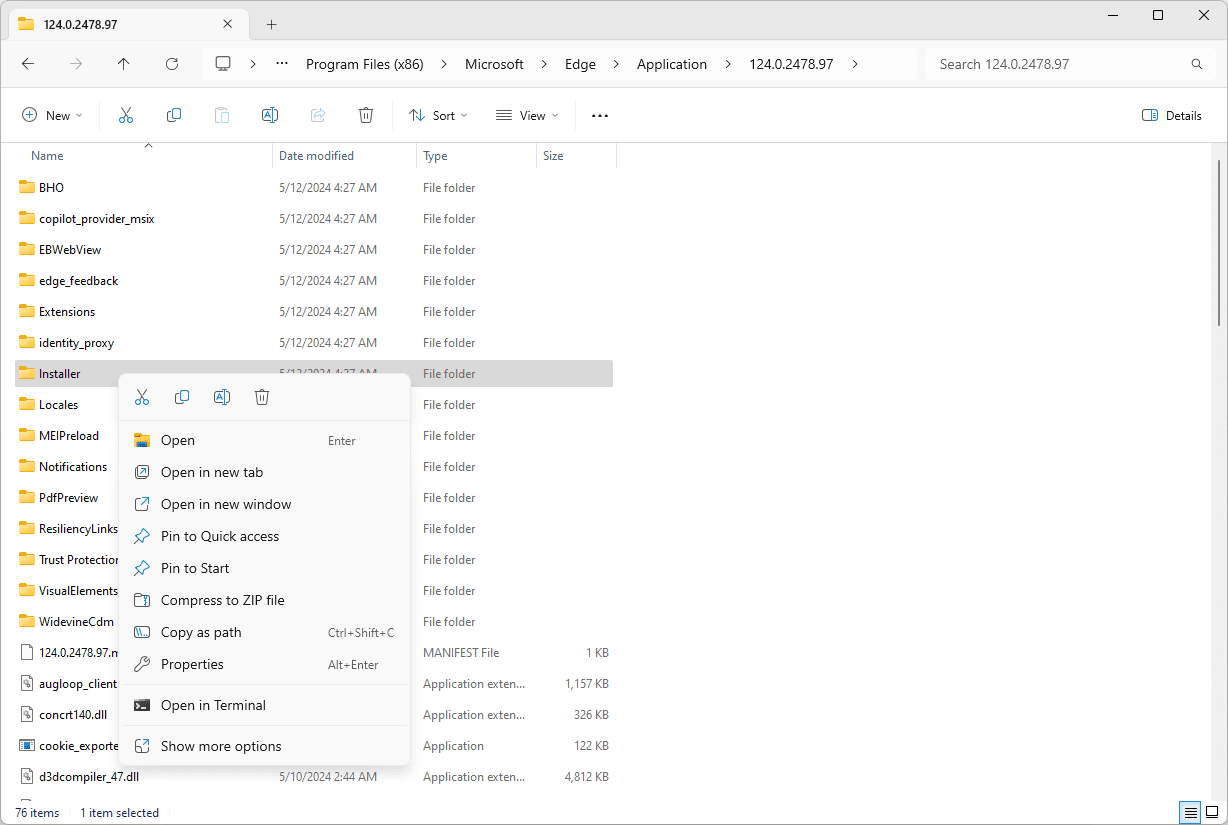
Open the most recently modified folder with a numerical name. For example, 124.0.2478.97.
-
Right-click the Installer folder and choose Copy as path.
-
Open Terminal as an administrator and launch PowerShell from there. Type cd, and then paste the path you copied in the last step. It should look something like this:
cd "C:\Program Files (x86)\Microsoft\Edge\Application\124.0.2478.97\Installer"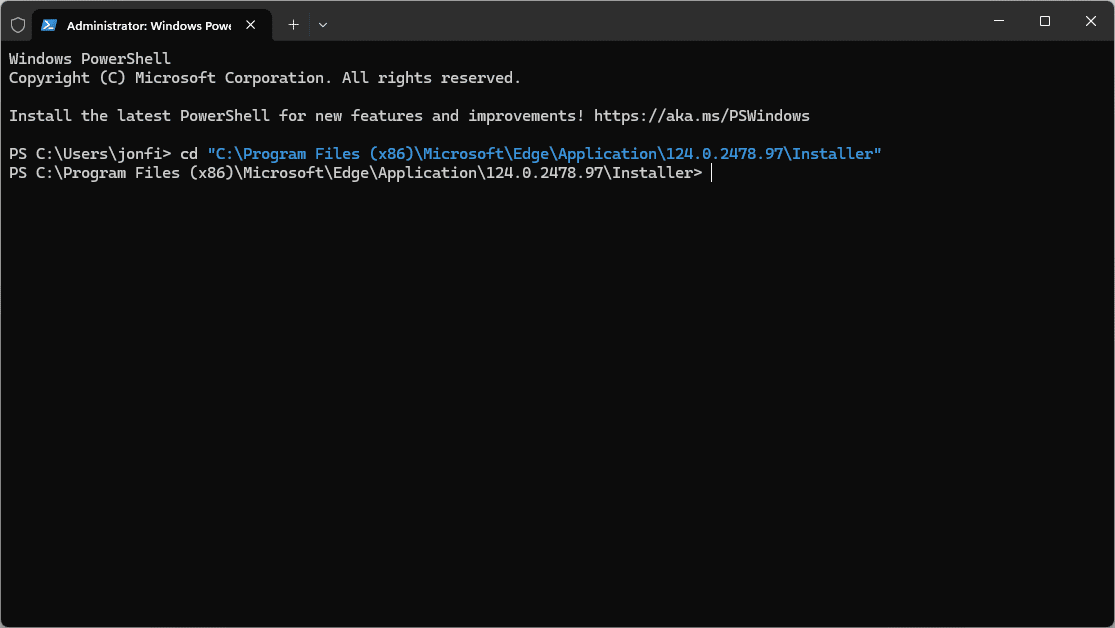
-
Press Enter to run the command, which will change the working directory to that folder.
-
Copy the command below and then paste it into PowerShell by right-clicking once in the black box.
.\setup.exe -uninstall -system-level -verbose-logging -force-uninstall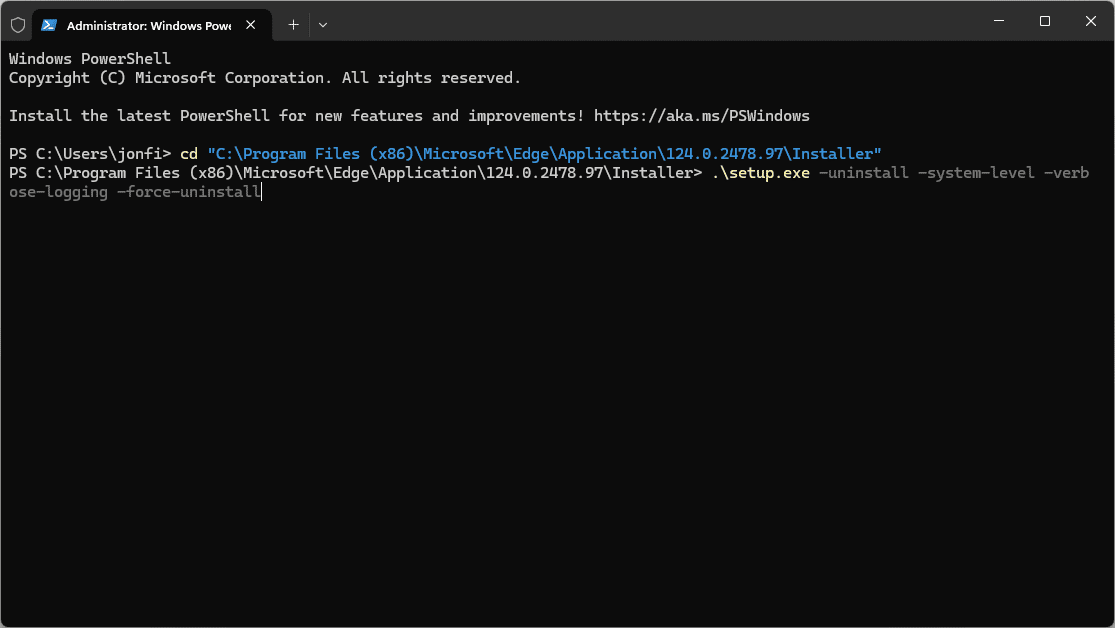
-
Press Enter and wait for the command to run. Edge should be removed from your computer.
An Alternative Command to Uninstall Microsoft Edge
If the first approach did not work as expected, there is another option to try that uses a different command.
-
Open PowerShell through Terminal as described above. Make sure you launch it as an admin by right-clicking it in the Start menu and choosing Run as administrator.
-
Type the following and press Enter to run the command:
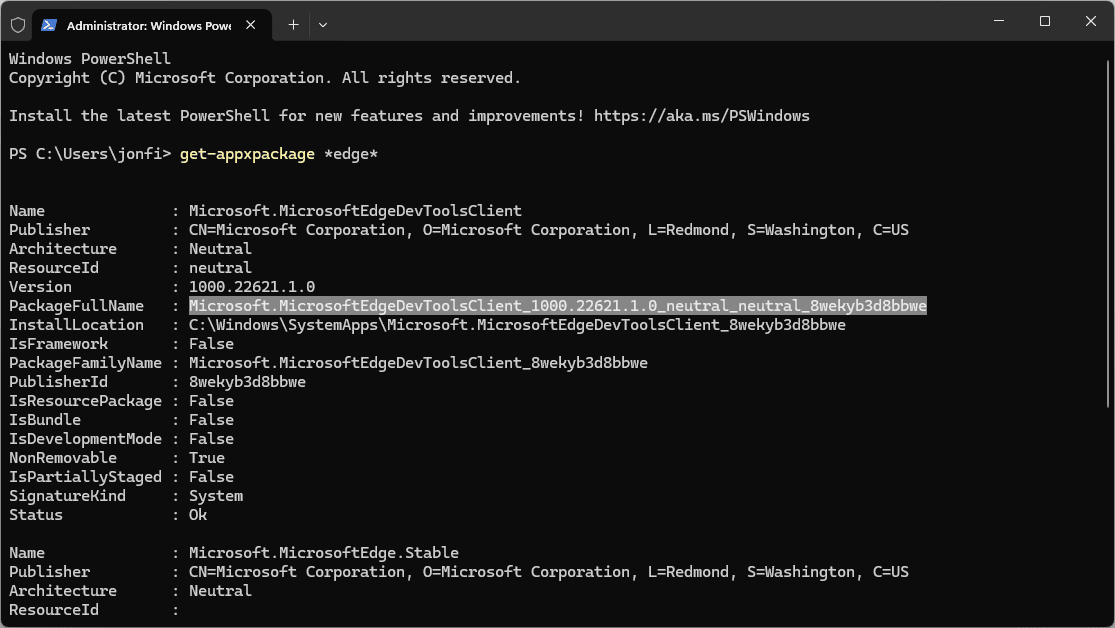
get-appxpackage *edge* -
Find PackageFullName in the lines of data that appear. Highlight the information to the right of the colon and press Ctrl+C to copy it.
-
Type remove-appxpackage at the bottom of the PowerShell window and then paste the text you copied in the last step. Here's our example (yours might look a little different):
remove-appxpackage Microsoft.MicrosoftEdgeDevToolsClient_1000.22621.1.0_neutral_neutral_8wekyb3d8bbwe -
Press Enter. When the command is finished running, Edge should be removed from your computer.
Do I Have to Delete Edge?
It's probably best to keep Edge around. Not only will Windows try to reinstall it later via Windows Update, but Windows could misbehave without Edge. The better option is to simply pick a different browser; you can run more than one on your computer at the same time.
There are lots of browsers to pick from: Google Chrome, Mozilla Firefox, and Opera are just a few examples. Once you install an alternative to Edge, it's easy to change the default browser in Windows 11 from Settings.
Remove the Edge Icon From the Taskbar, Start Menu, or Desktop
If you don't uninstall Edge, you can still remove the Microsoft Edge icon.
To delete it from the taskbar, right-click its icon and select Unpin from taskbar. If it's visible in the Start menu, right-click the Edge icon and choose Unpin from Start. If there's a shortcut on the desktop, right-click it and select Delete.
How to Customize Windows 11