
What to Know
- Preview: Open files > View > Thumbnails > drag into Thumbnails sidebar of the new PDF > Save.
- Adobe Acrobat: Combine Files > Use Now > Add Files > choose files > Add Files > order as you wish > Combine.
- Combine PDF: Upload Files > choose files > Download > rearrange as needed > Combine.
If you need to combine multiple PDF files into a single file, and you have a Mac, you can easily combine several PDFs for free. Whether you use software that comes with your Mac, websites, or paid options, here's what you need to know about how to combine PDF files on any version of macOS.
How to Combine PDF Files on Mac Using Preview
The Preview program that comes pre-installed on every Mac provides a super-simple way to combine PDF files for free. Follow these steps to merge PDFs:
-
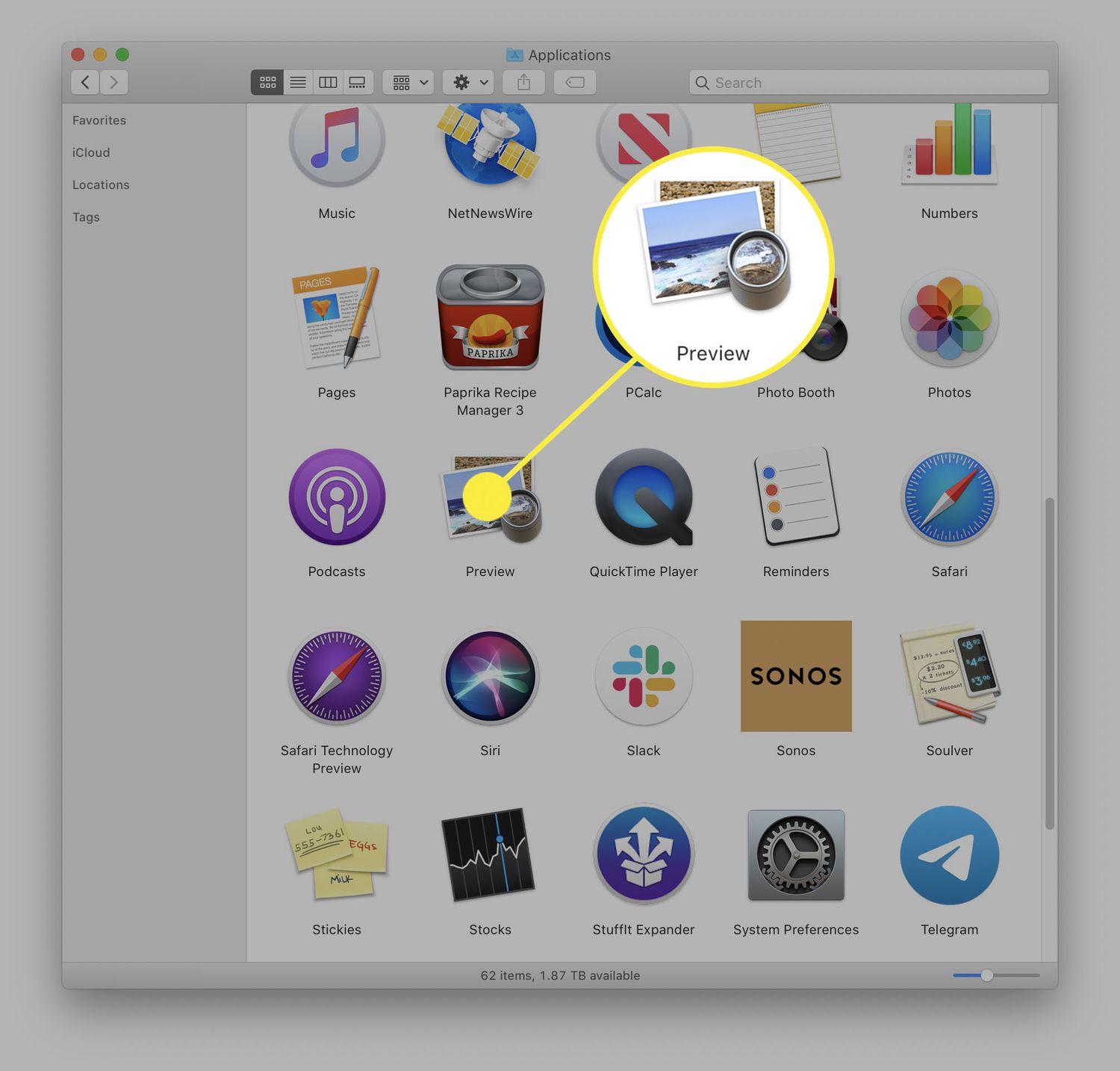
Open the PDF files you want to combine using Preview.
Go to the Applications folder to find and open Preview, or press Command+Space Bar to use Spotlight to search for and launch the app.
-
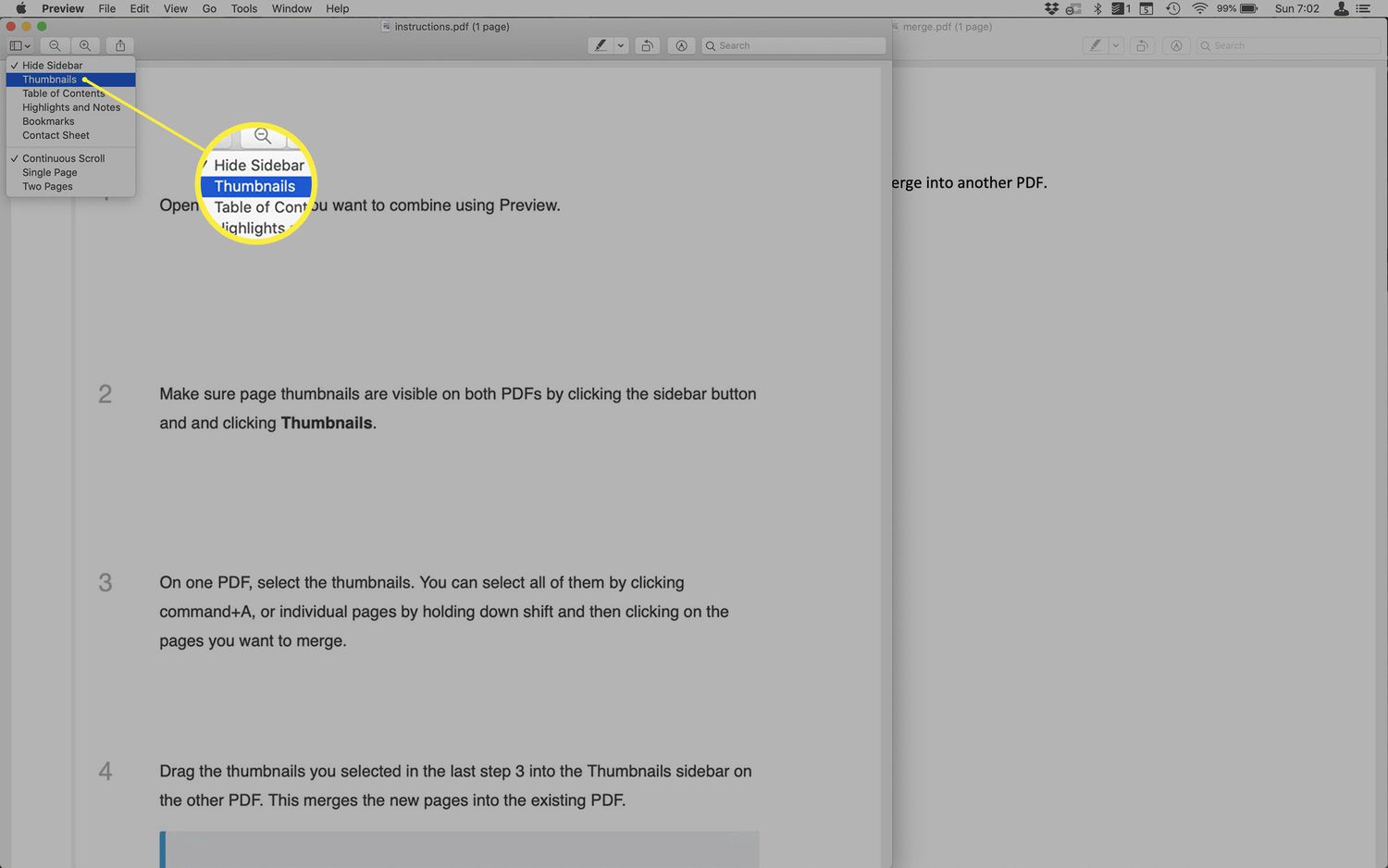
Make sure page thumbnails are visible on both PDFs by clicking the sidebar button and and clicking Thumbnails.
-
On one PDF, select the thumbnails.
You can select all of them by clicking Command+A, or individual pages by holding down Shift and then clicking on the pages you want to merge.
-
Drag the thumbnails you selected in step 3 into the Thumbnails sidebar of the destination PDF.
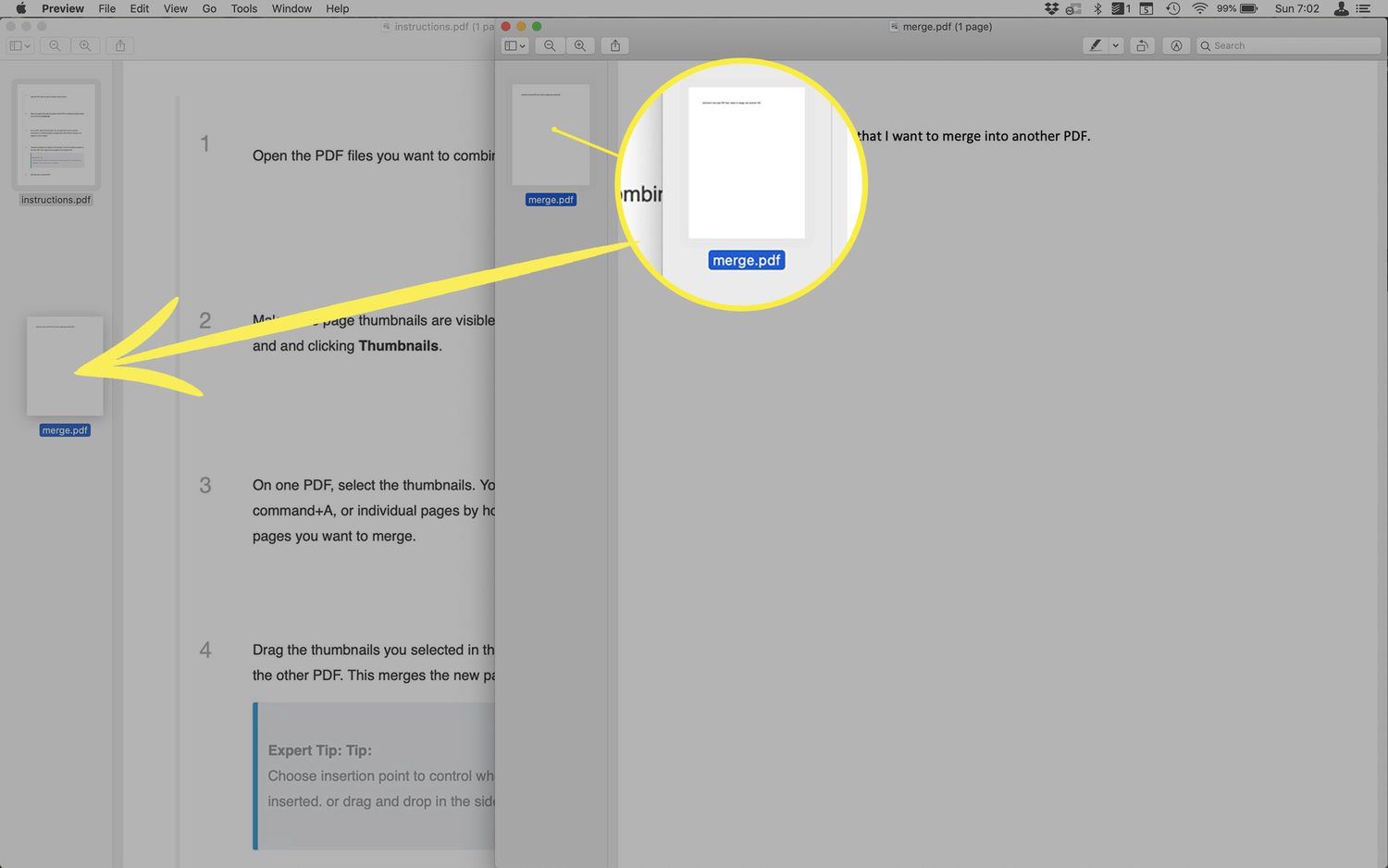
Choose where in the merged file the new PDF appears by dragging and dropping it in the preferred spot. You can also rearrange files in the Thumbnails sidebar after dragging and dropping files into the destination PDF.
-
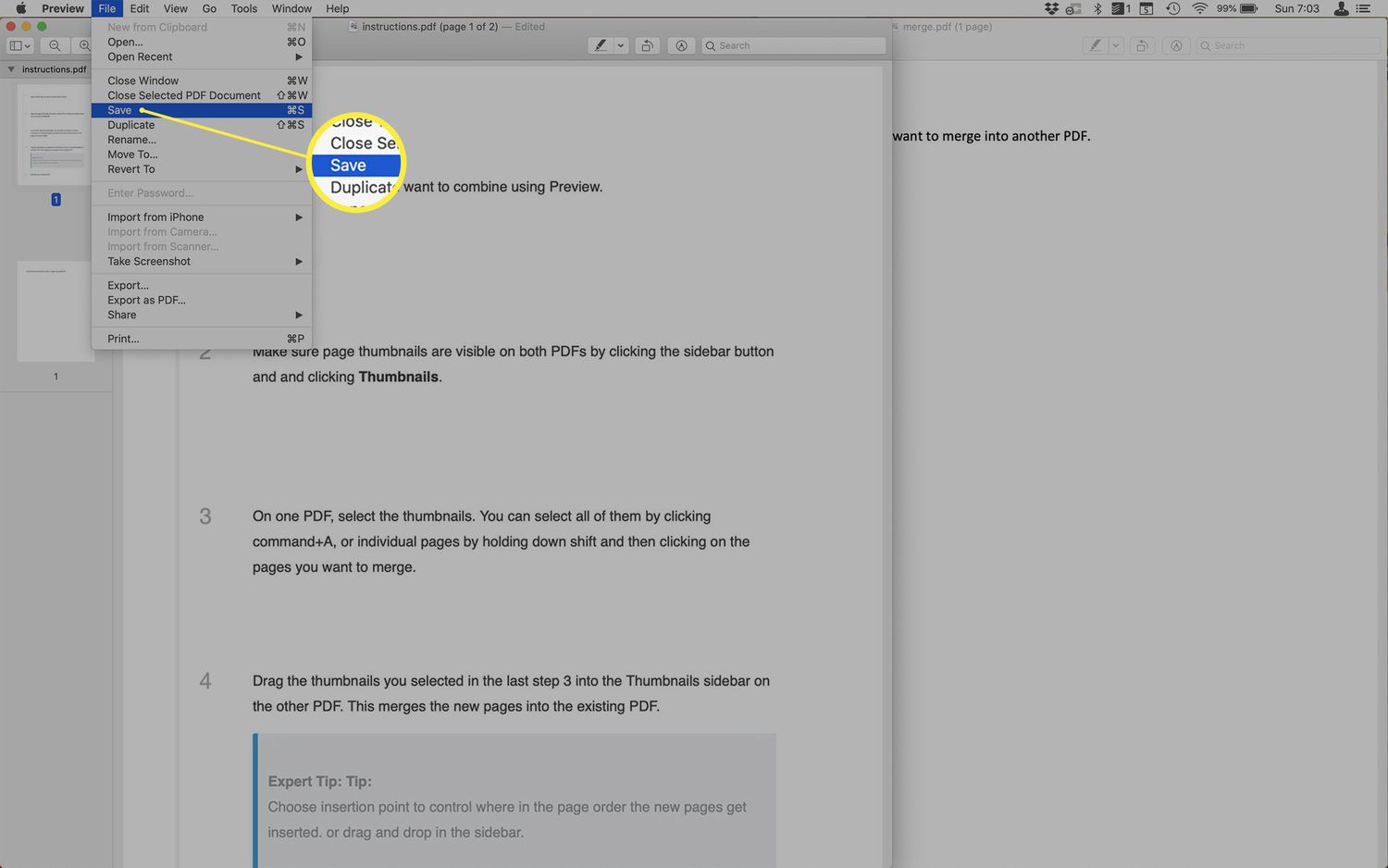
Save the new, combined PDF to rename it.
The moment you drag and drop PDF thumbnails into another PDF, the destination PDF saves the changes.
How to Combine PDF Files on Mac Using Adobe Acrobat
If you've got Adobe Acrobat-which is part of Adobe's Creative Cloud line of high-end graphics, animation, and publishing programs-you can merge PDFs using that program instead. Here's what to do:
You can only do this with the paid version of Adobe Acrobat. The free Adobe Acrobat Reader program can't combine PDFs and just prompts you to upgrade to the paid version.
-
Open Adobe Acrobat.
-
Go to the Combine Files section and click Use Now.
This sequence may also appear as Combine Files > Open > Add Files.
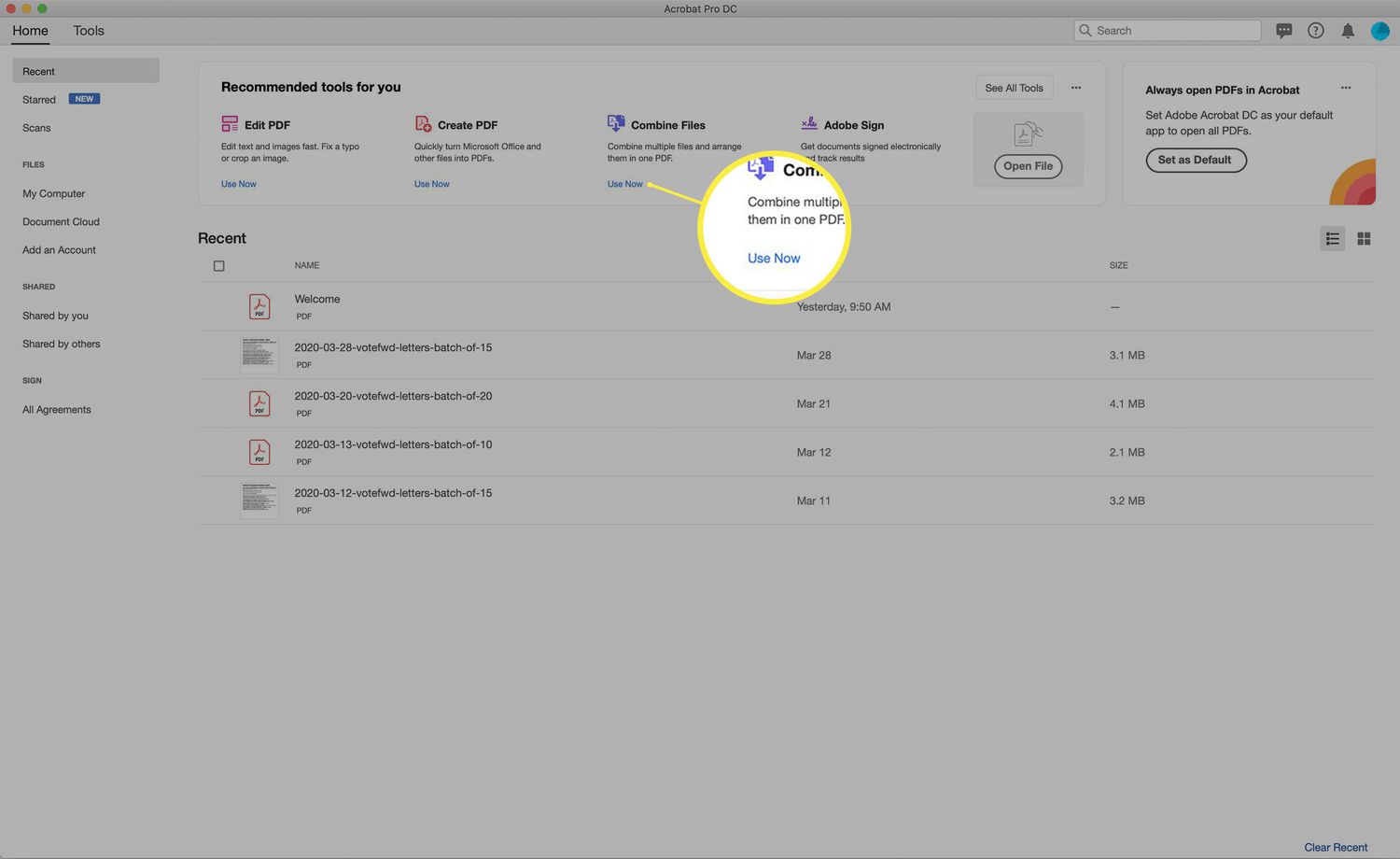
If this option isn't displayed by default for you, click See All Tools first.
-
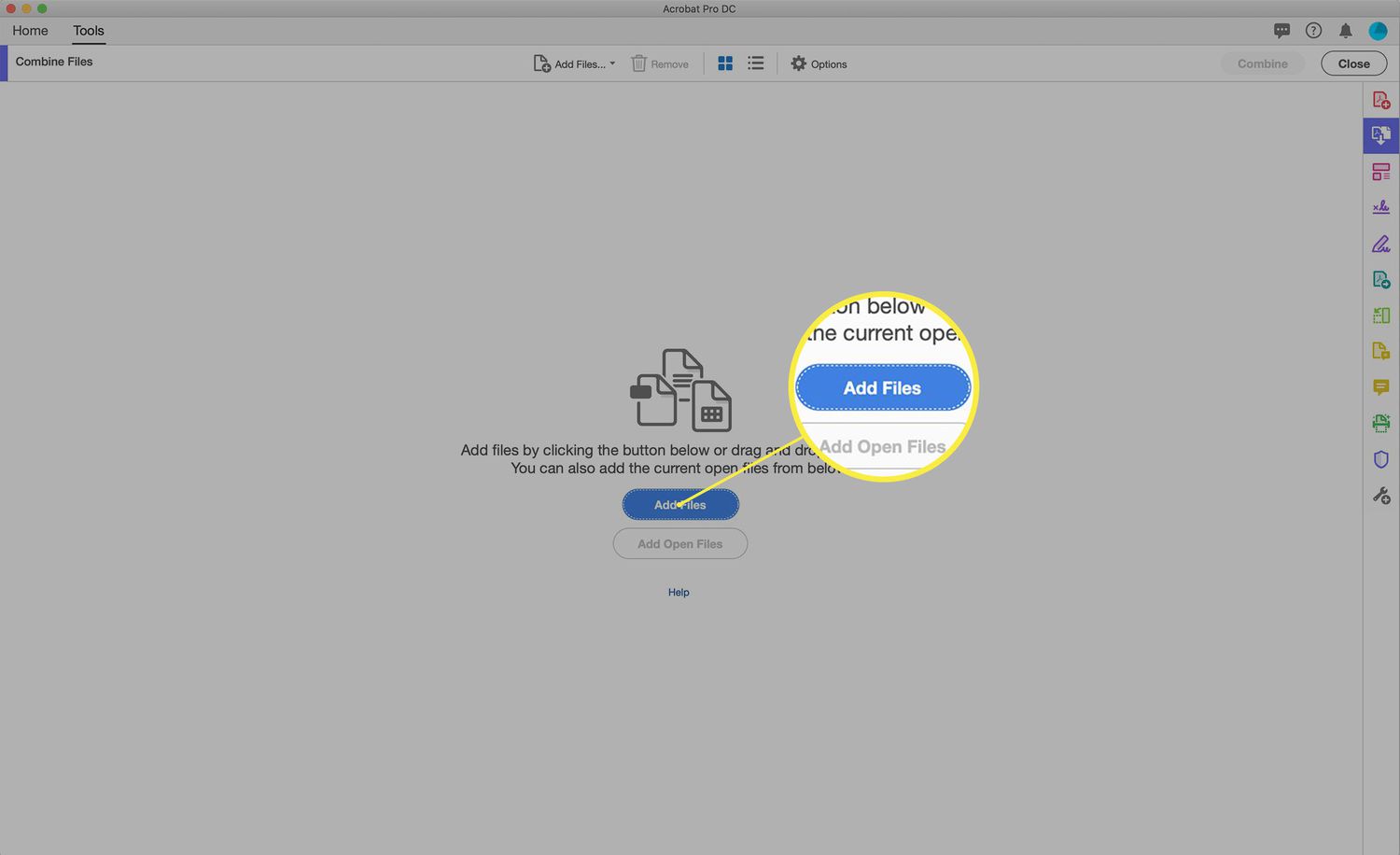
Click Add Files.
-
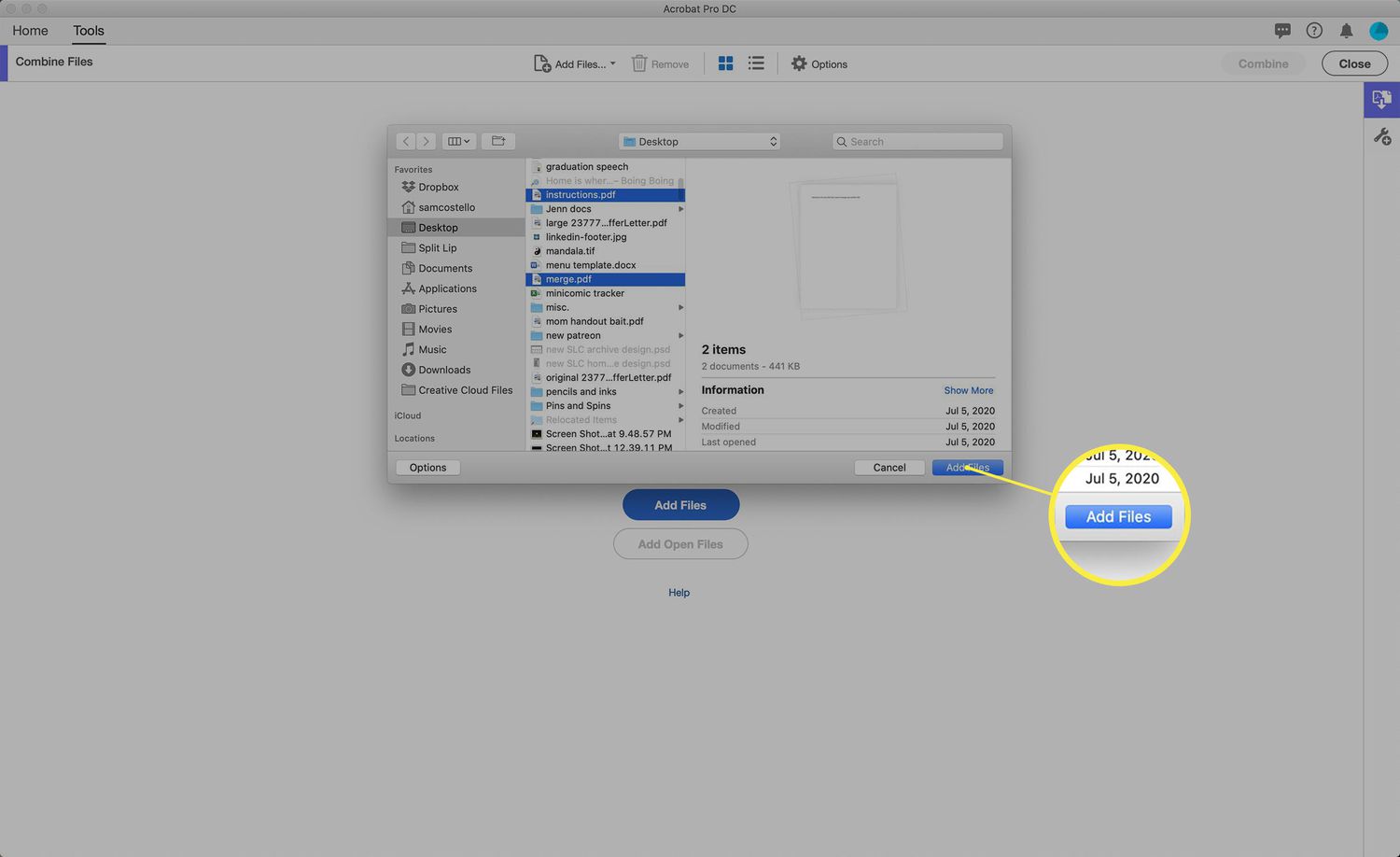
In the Finder window, navigate to and select the PDFs you want to combine > click Add Files.
You can select them one at a time, select files next to each other by holding down Shift when you click, or select files that aren't next to each other by holding down Command when you click.
-
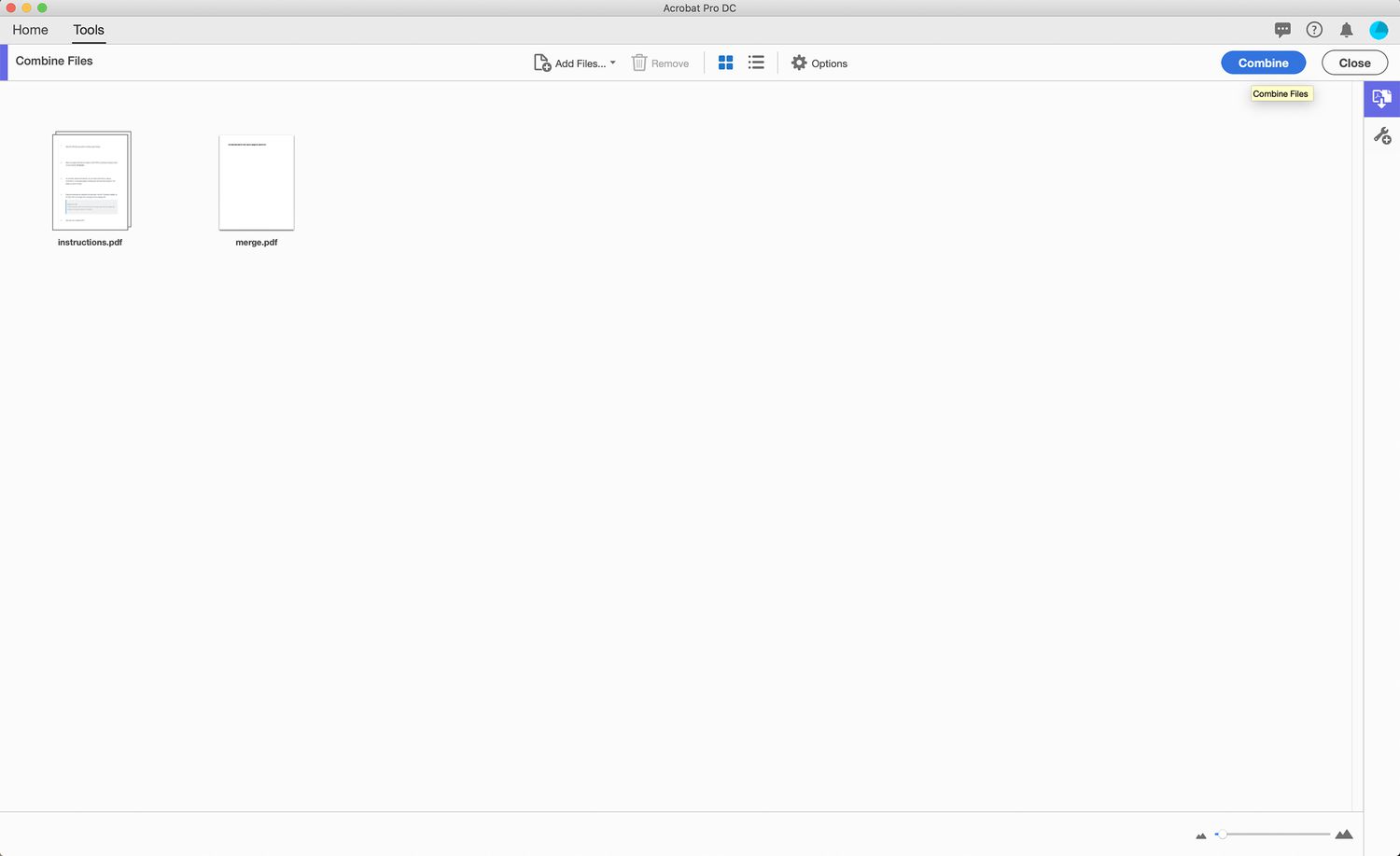
All of the files you're going to combine are displayed. You can drag and drop them to change their order in the combined PDF. When they're in the order you want, click Combine.
-
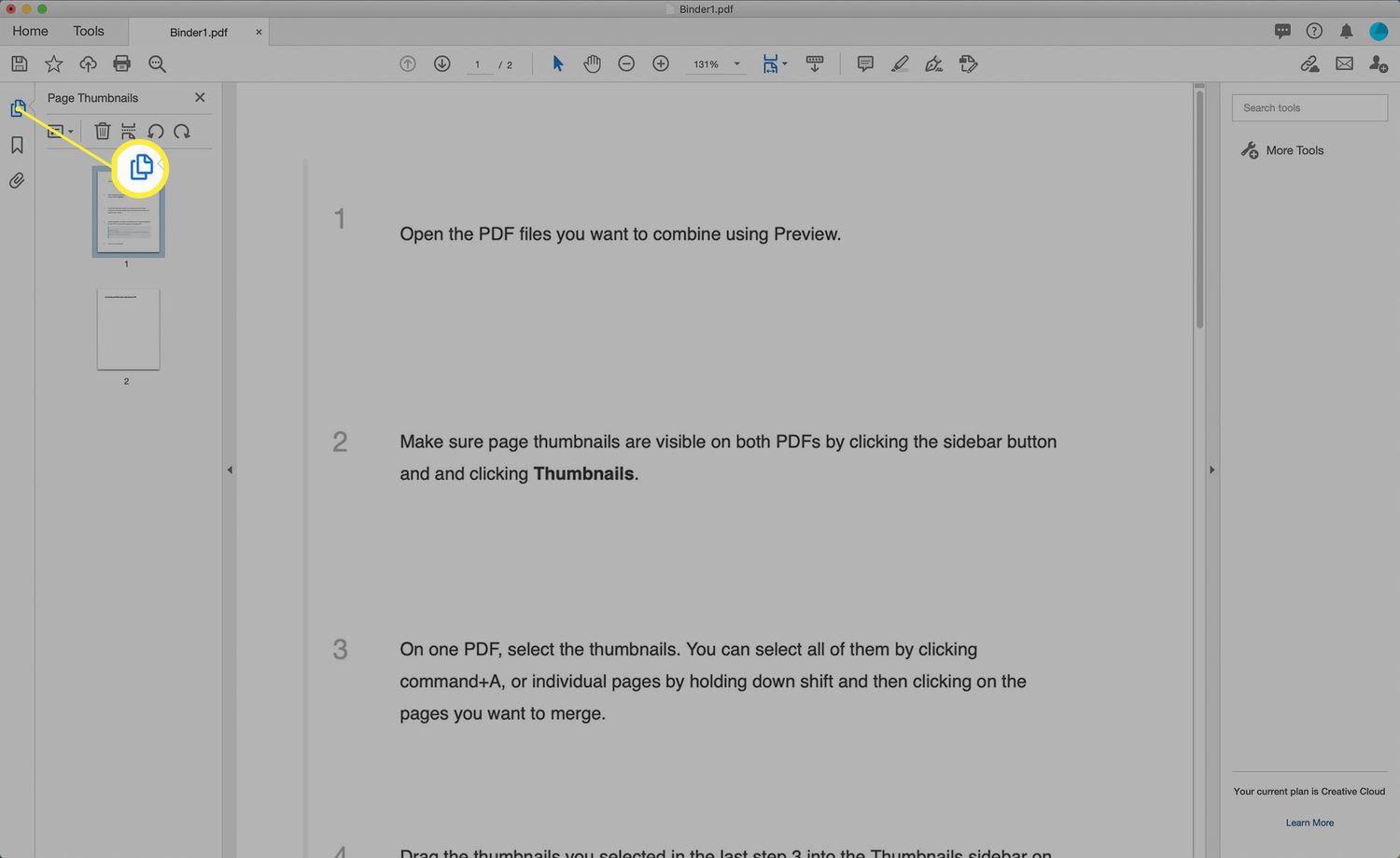
In the newly merged file, you can still re-order the pages by clicking Page Thumbnails in the sidebar and then dragging and dropping the pages to re-order.
-
Save the PDF.
How to Combine PDF Files on Mac Using Combine PDF
If you prefer to combine your PDFs using a free online tool, you've got a number of options. For these instructions, we chose Combine PDF, but there are a number of other good options out there. We also like PDF Merge.
To use Combine PDF, follow these steps:
-
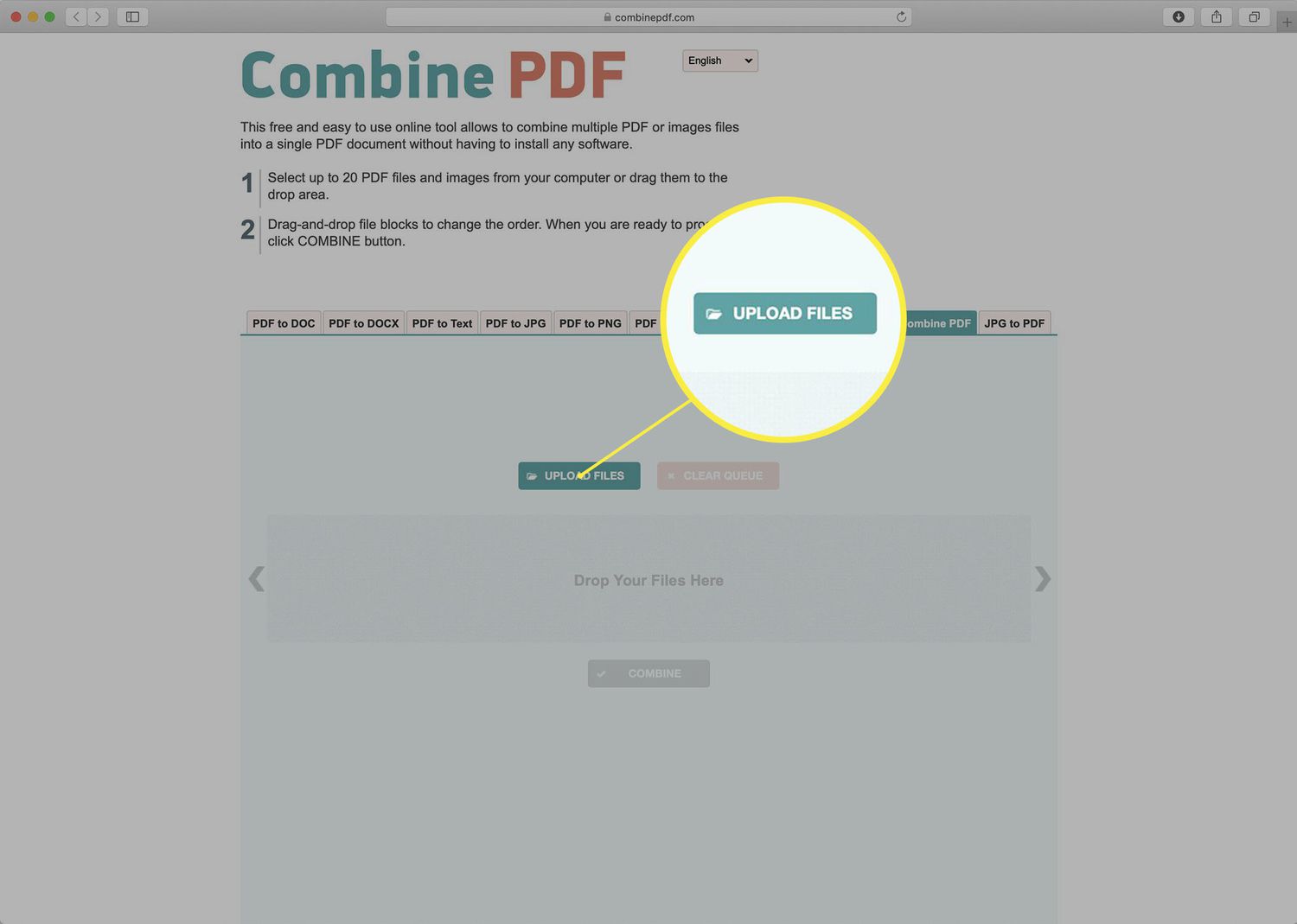
In your preferred web browser, go to the Combine PDF website. Click Upload Files.
-
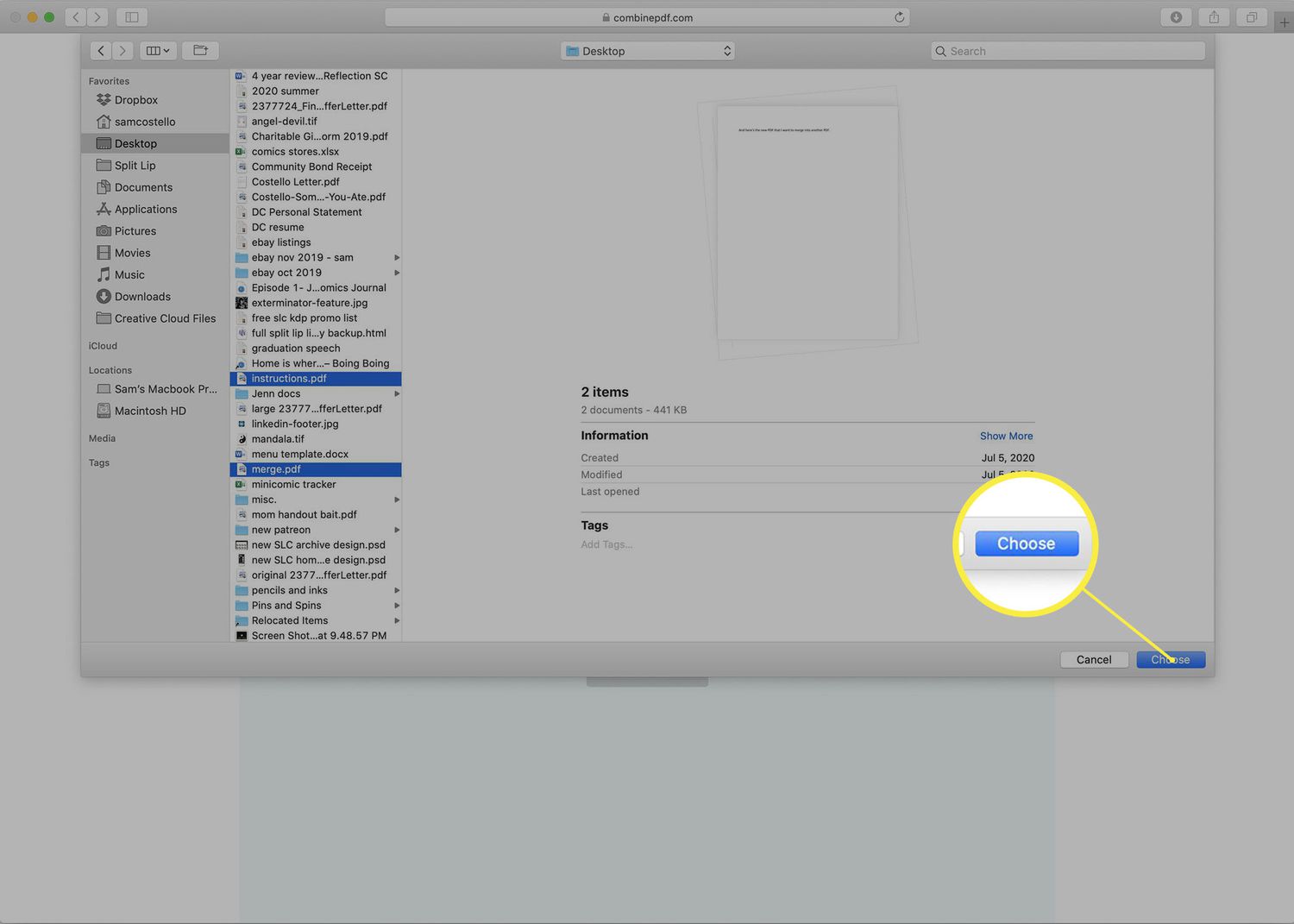
Navigate through your hard drive to find and select the PDFs you want to combine and then click Choose.
You can also drag and drop the PDFs into the page, if you prefer that route.
-
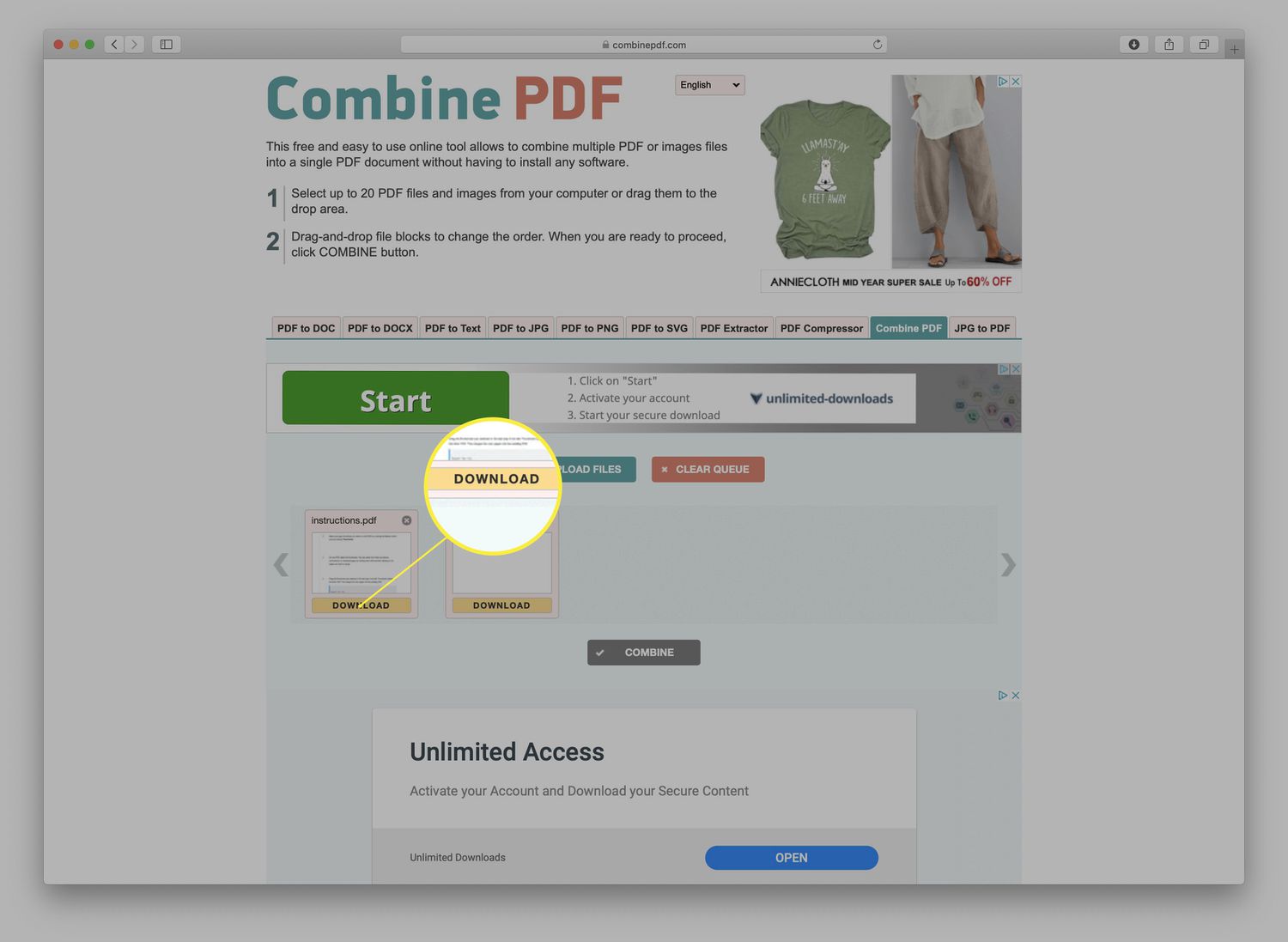
The PDFs will upload and then convert for use by the website. Wait until that process has completed and both PDFs show the Download option.
-
Drag and drop the files to change the order in which they'll be merged.
-
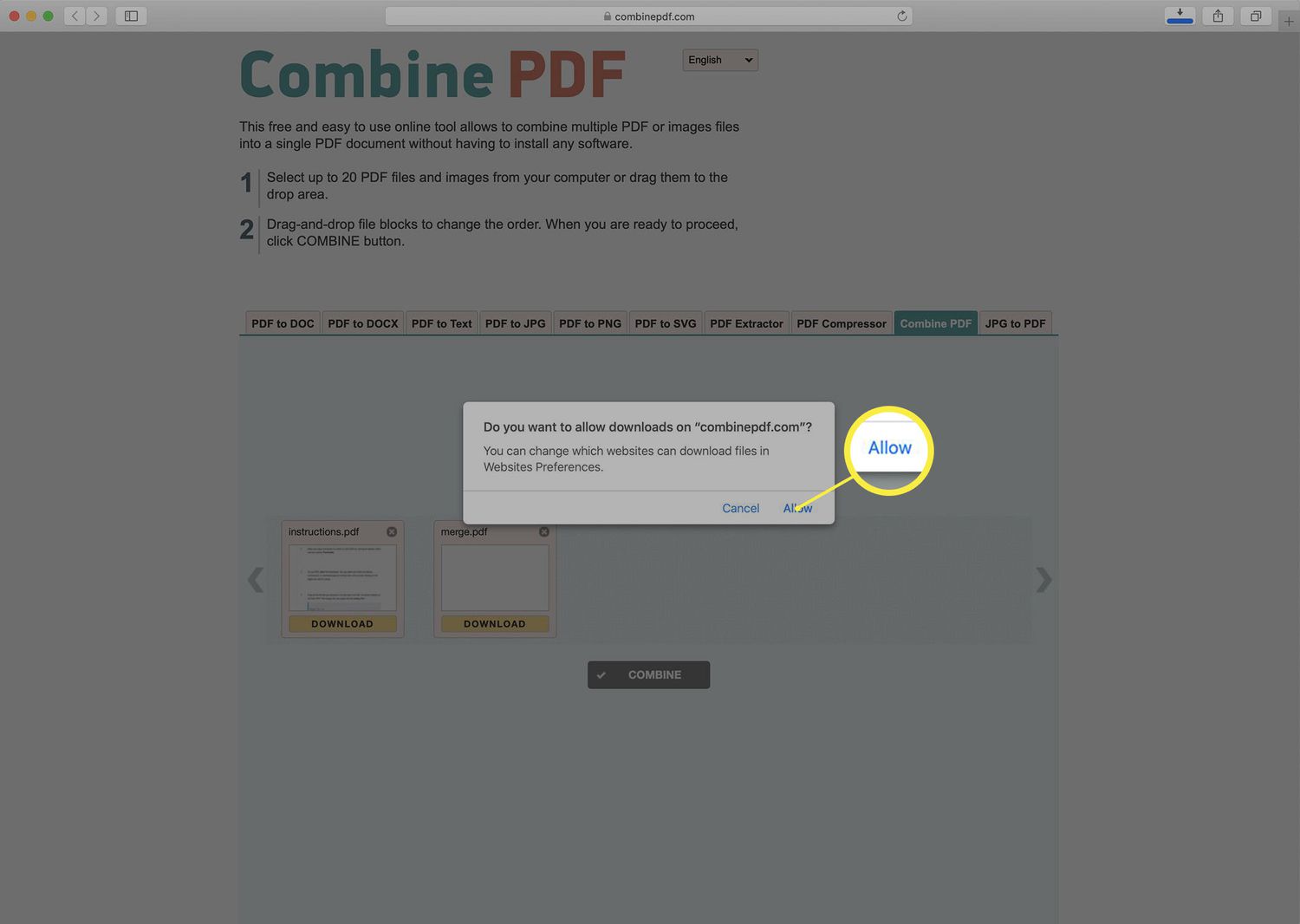
Click Combine to merge the PDFs (and, if your browser prompts you with a security warning, click Allow).
-
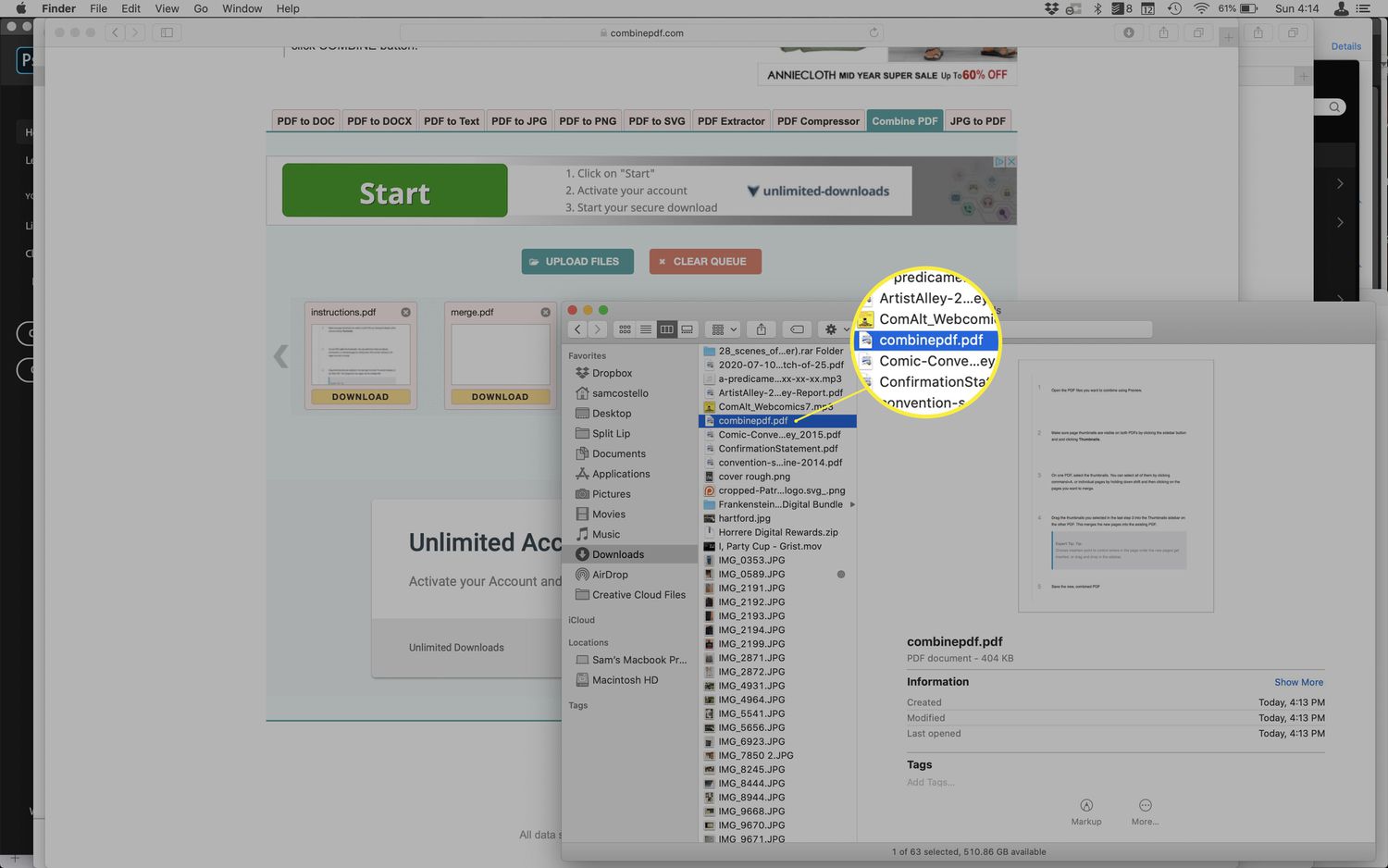
The combined PDF automatically downloads to your Mac's Downloads folder. The PDF will be named combinepdf.pdf.
-
Open the merged PDF using Preview or Adobe Acrobat to see the results or to re-order pages using the steps described earlier in this article.