
What to Know
- Go to Settings > Screen Time > Content & Privacy Restrictions.
- Move the toggle next to Content & Privacy Restrictions to On.
- Tap iTunes & App Store Purchases > In-app Purchases > Don't Allow.
This article explains how to turn off in-app purchases on the iPhone and iPad to prevent unauthorized spending. Instructions apply to both iPhones and iPads.
How to Turn Off In-App Purchases
In-app purchases on iPhones and iPads have been a boon to developers and consumers, with the sharp increase in freemium games arising from the ease of in-app purchases.
To avoid surprise purchases by young kids in the family, turn off in-app purchases on your iPhone or iPad. Here's how.
-
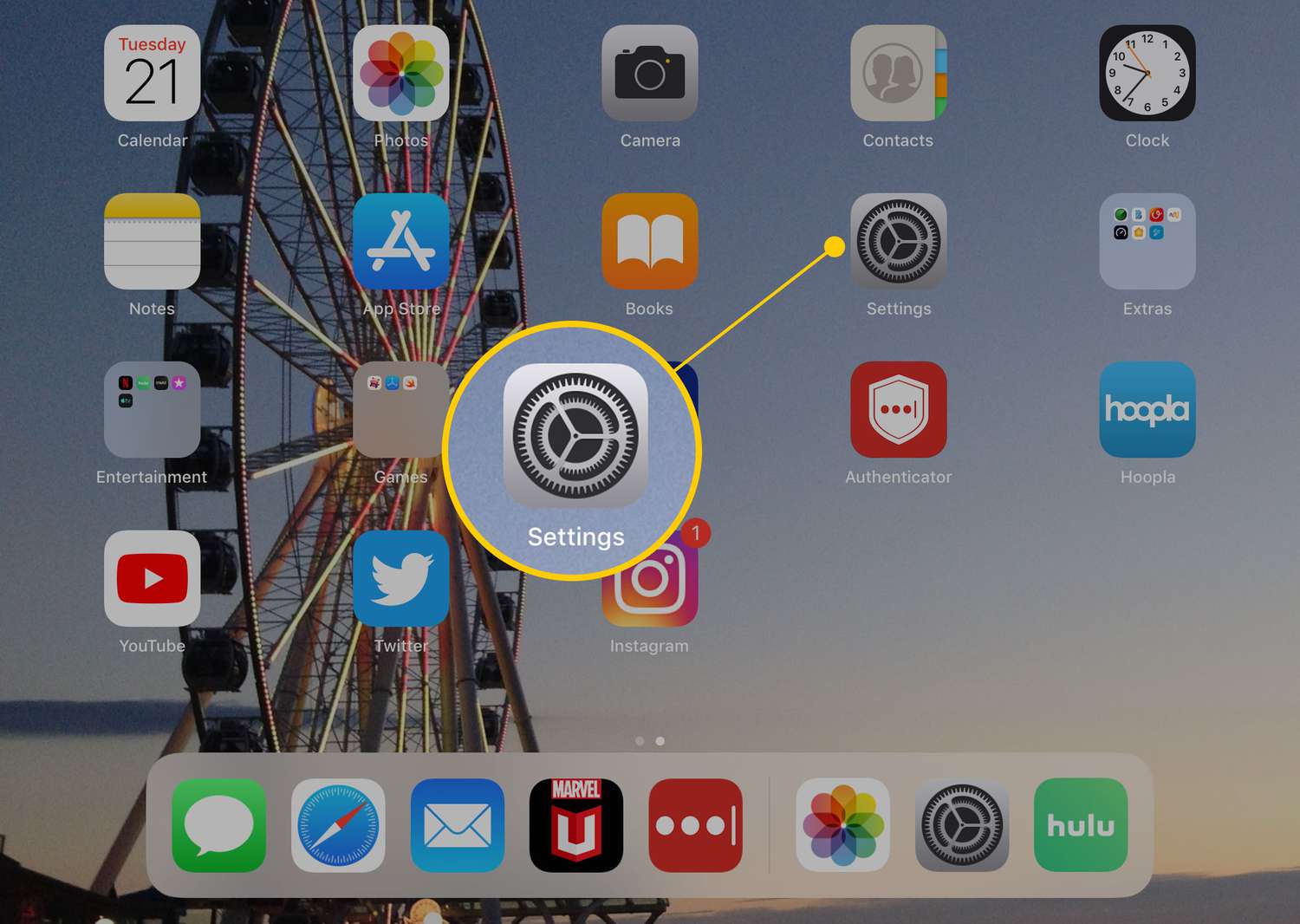
Open the Settings app.
-
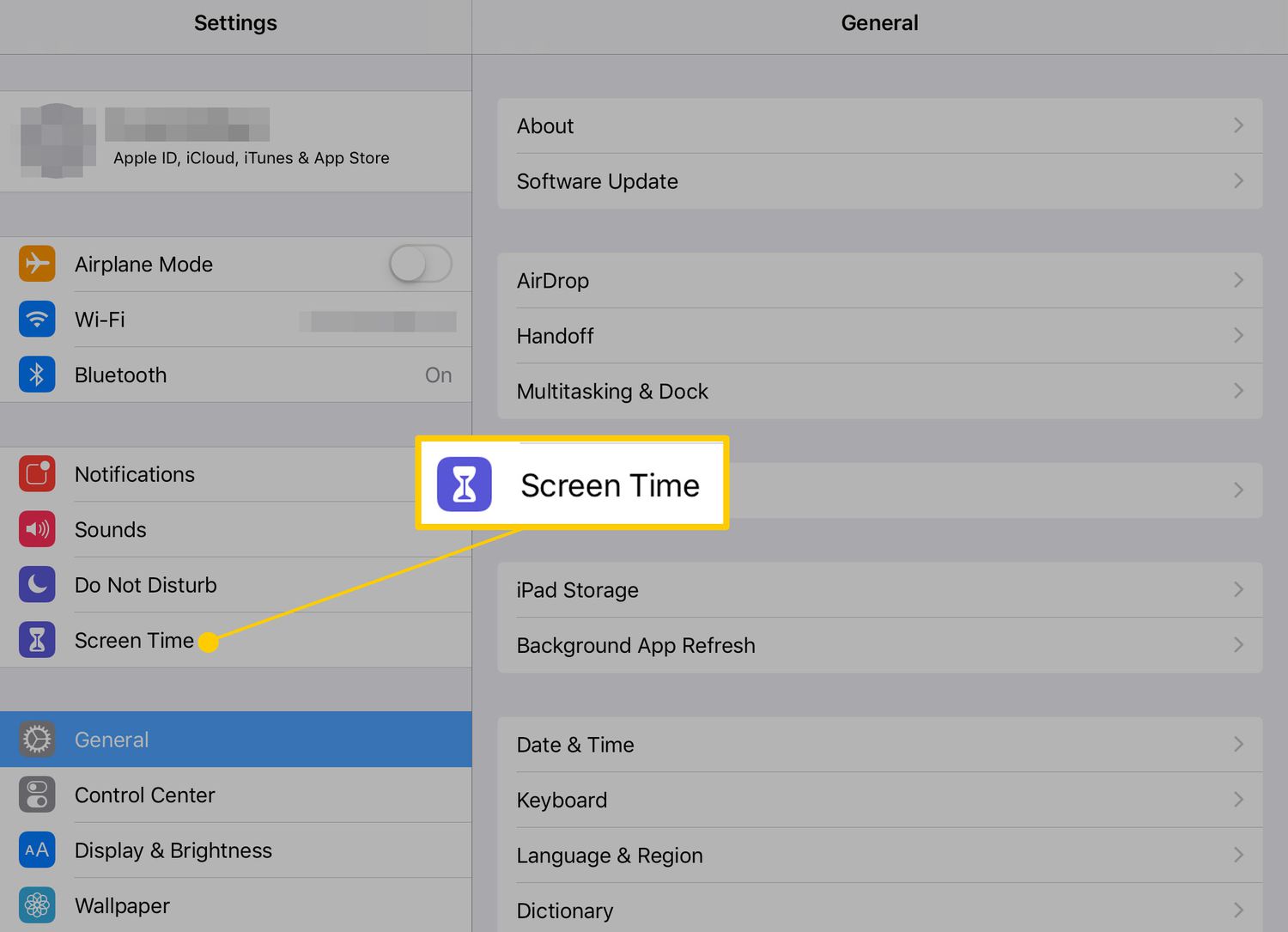
Tap Screen Time.
-
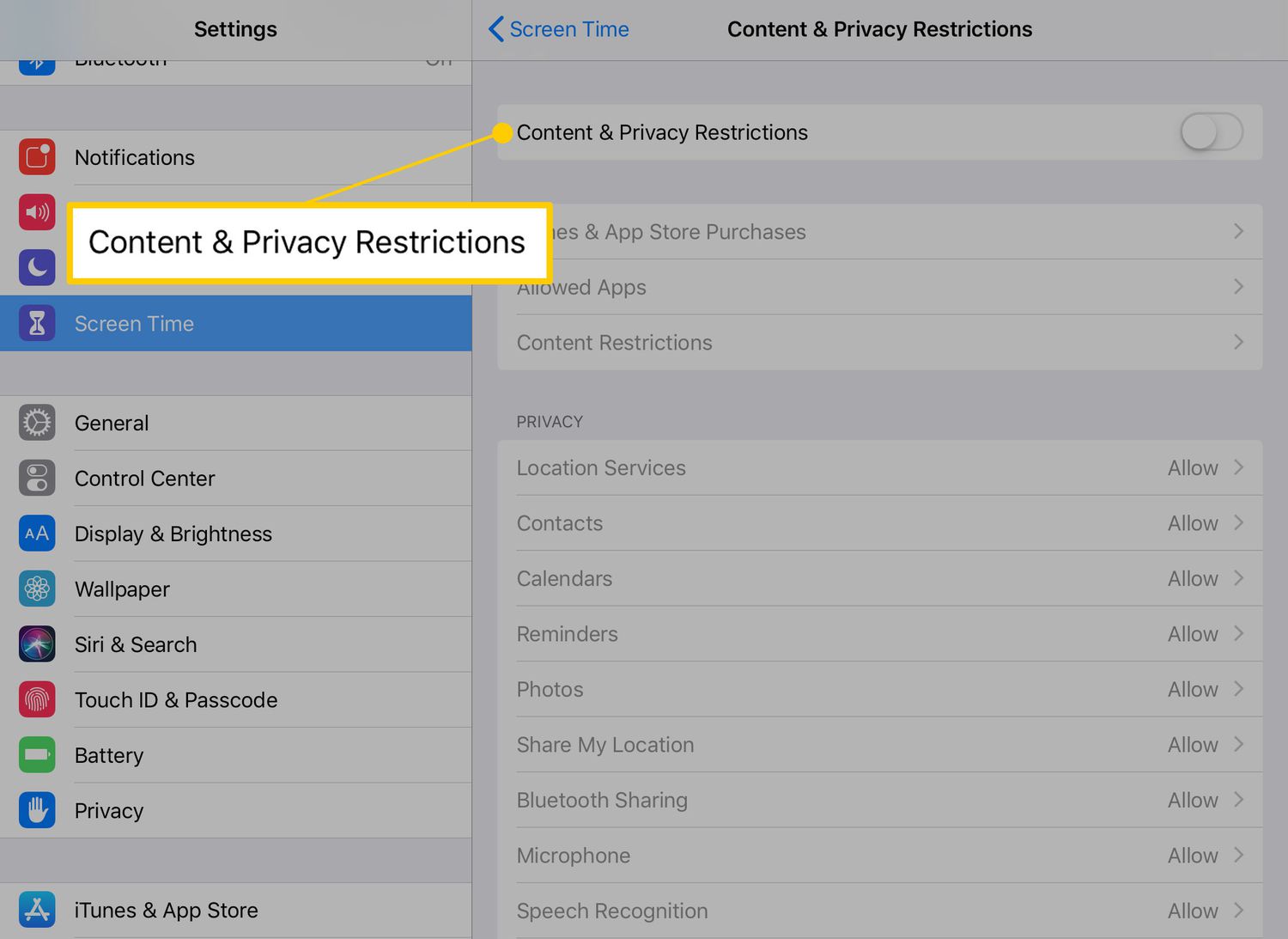
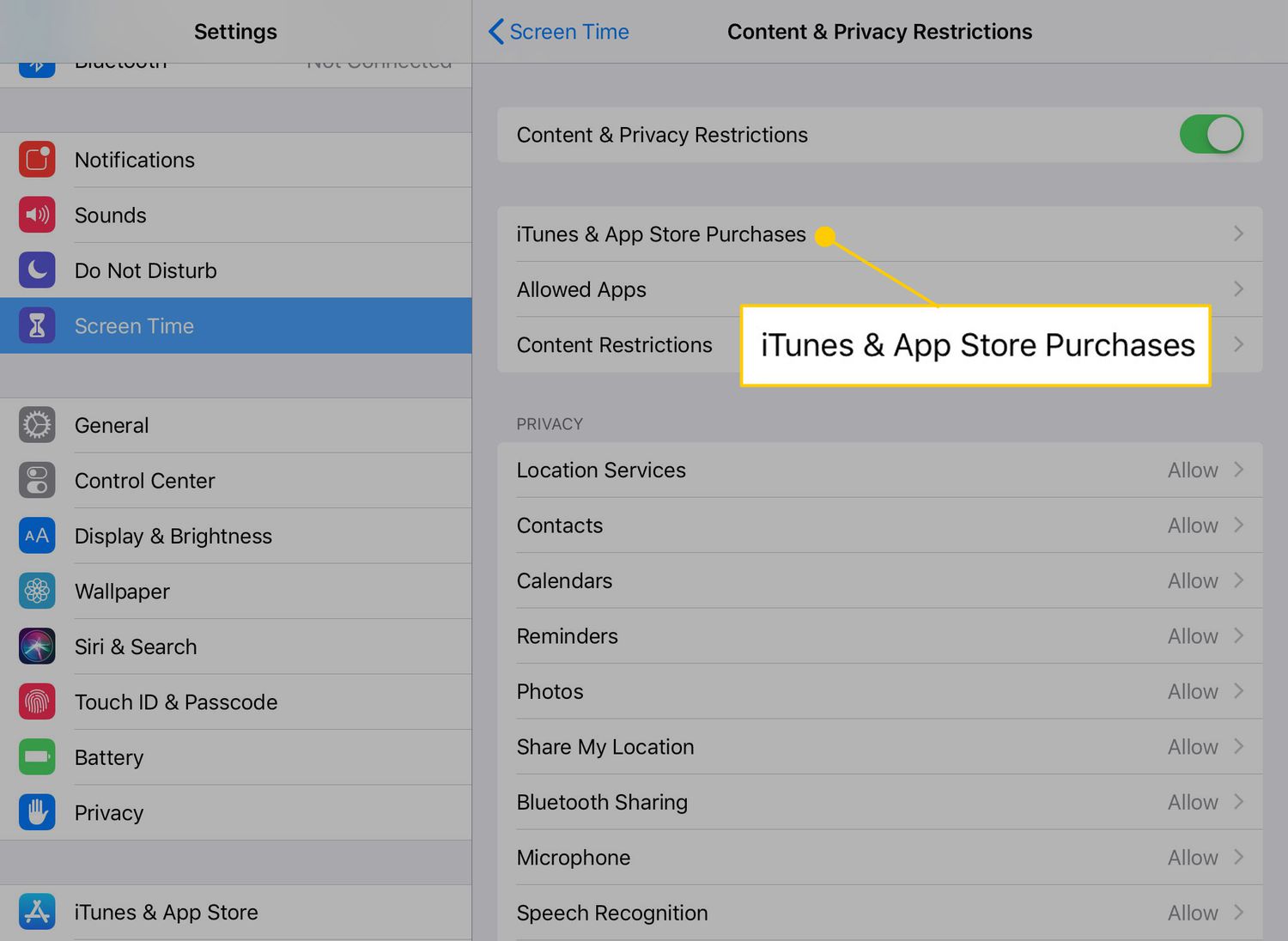
Tap Content & Privacy Restrictions.
-
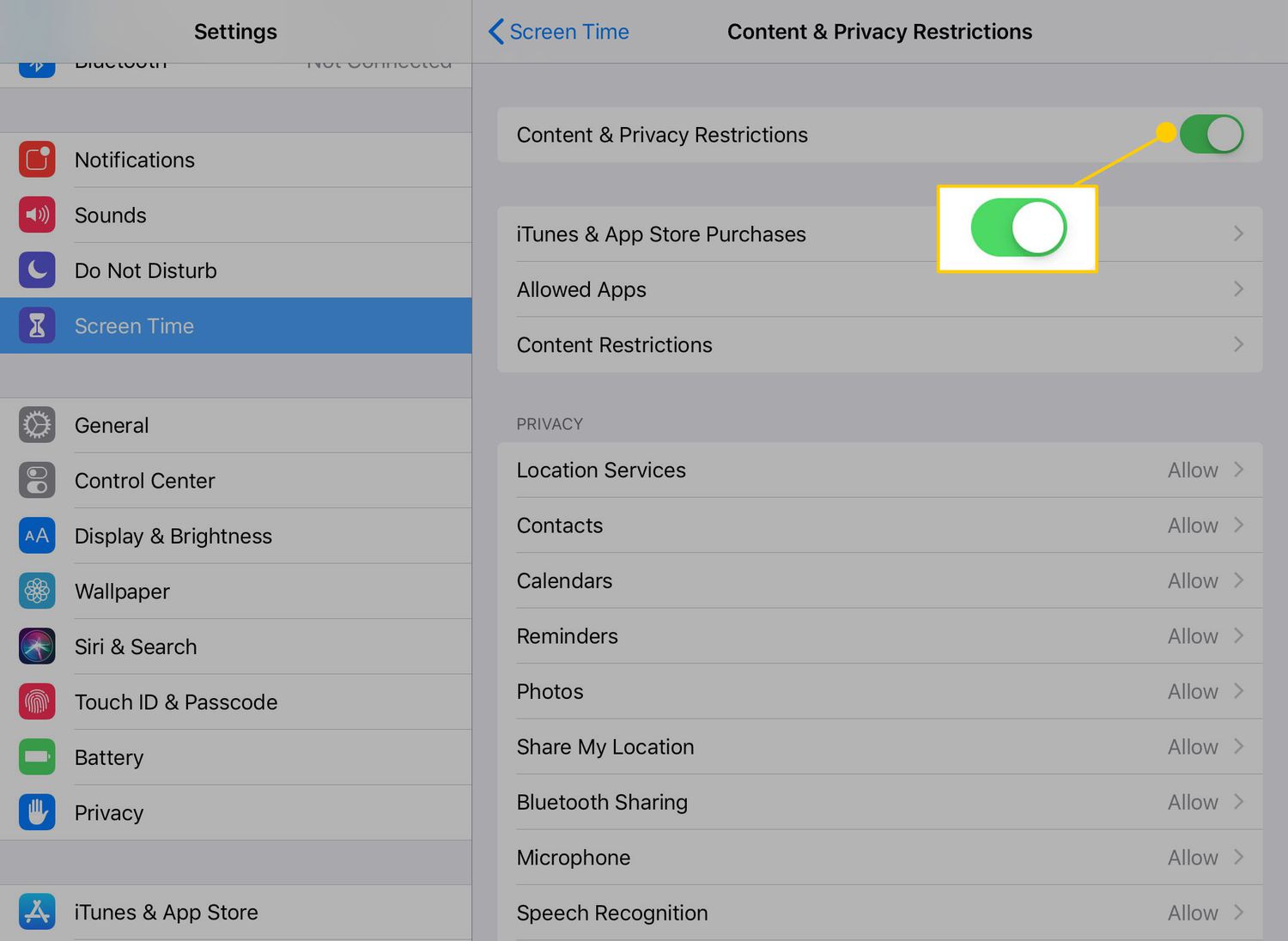
Move the Content & Privacy Restrictions toggle switch to On/green.
-
Select iTunes & App Store Purchases.
-
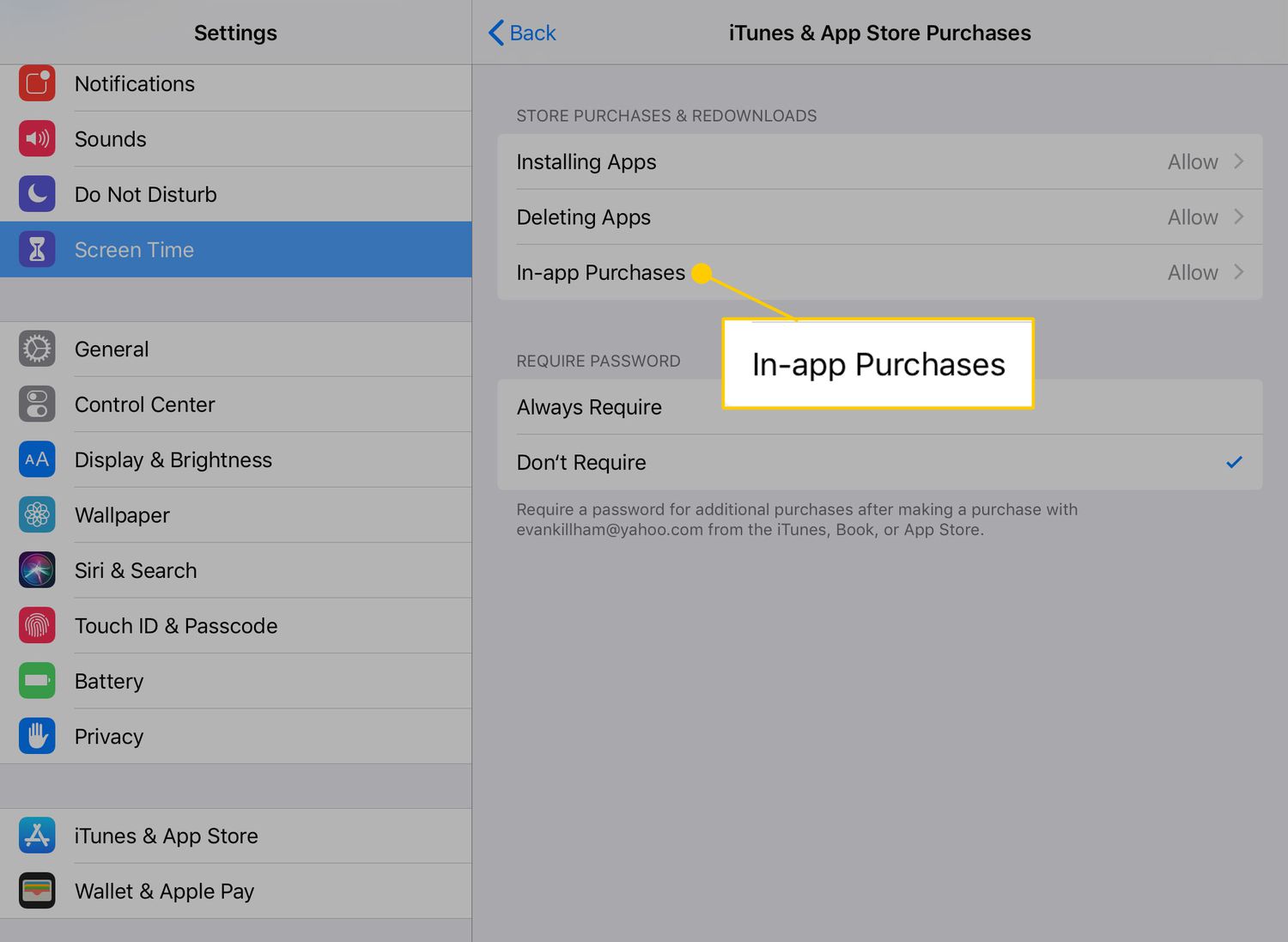
Select In-App Purchases and change the setting to Don't Allow.
The iTunes & App Store Purchases screen also has options to prevent your kids from downloading and installing apps or require a password for purchases.
Which Other Restrictions Should You Turn On?
While you're in the Screen Time settings, you'll see other adjustments you can make to help protect your child. Apple provides a lot of control over what an iPad or iPhone user can and cannot do.
If you don't already see these options, tap App & Website Activity > Turn On App & Website Activity.
- Screen Time: This setting first appeared in iOS 11 and provides powerful tools that monitor and control how much time kids spend on an iPhone or iPad. The main screen includes a daily readout of how long the tablet has been awake and which apps have been active.
- Downtime: This feature controls when people can use the iPad. If you don't want your kids playing games during dinner, for example, disable the tablet during those hours.
- App Limits: You can limit how long your kids play or use particular apps with this setting, which lets you set a maximum amount of time per day that they can use those apps.
- Content Restrictions: Like the parental controls on a TV, you can set content ratings to show only appropriate content. For example, if you don't want your kids watching R-rated movies on the iPad, this is where you prevent that.
- Web Content: You don't need to turn off Safari to keep your kid safe. The Web Content setting blocks and allows specific websites and restricts adult content with a single tap.
Find and adjust content rating and web content restrictions from Screen Time > Content & Privacy Restrictions > Store, Web, Siri & Game Center Content.
The Best Parental Control Routers of 2024