
What to Know
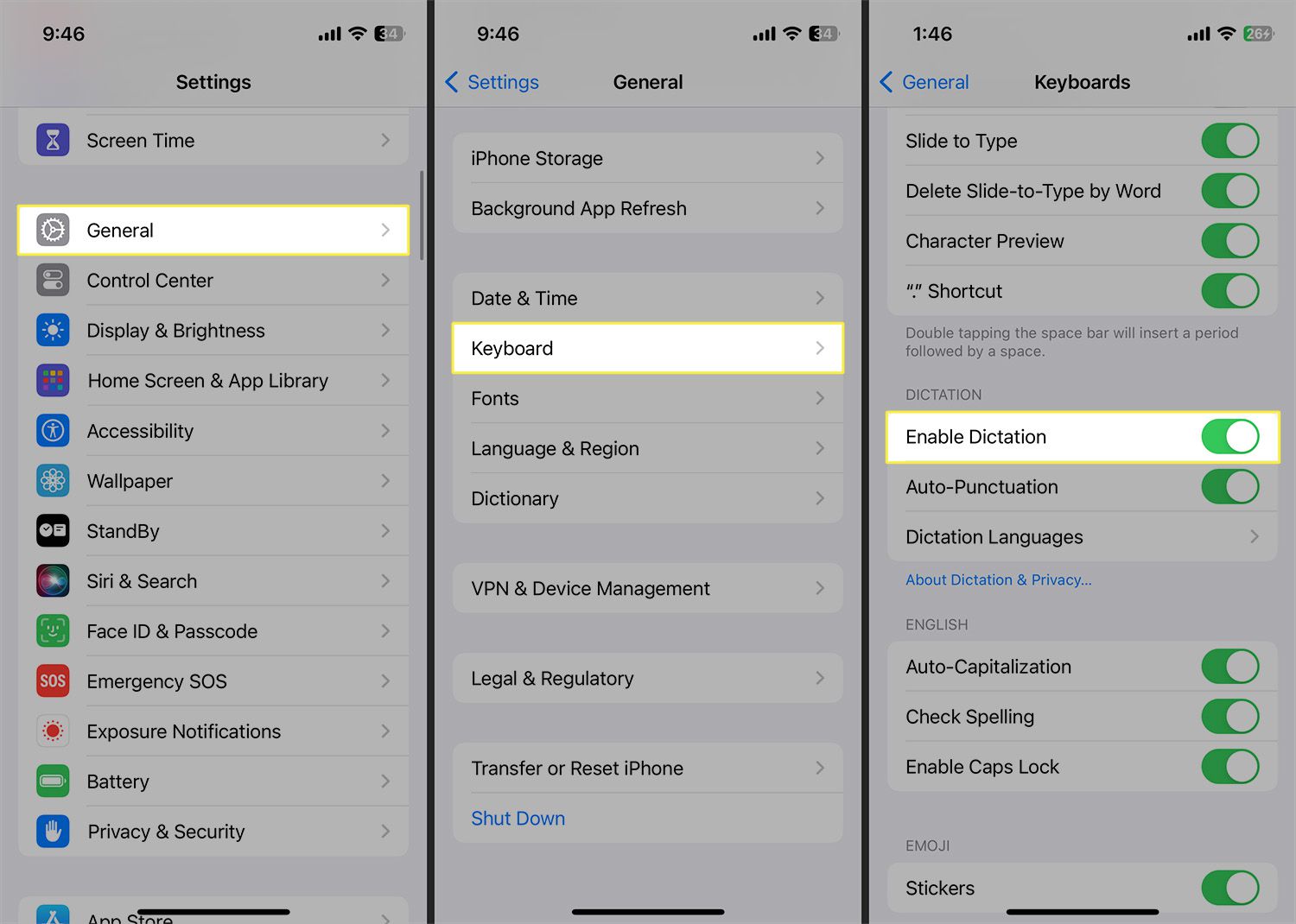
- Go to Settings > General > Keyboard > toggle on Enable Dictation.
- Open on-screen keyboard in app with text field > tap the microphone > speak > view your words on screen.
- Use keywords for punctuation > tap the microphone, keyboard, or empty part of screen to stop dictation.
This article explains how to dictate on iPhone with instructions for turning on, using, and ending Dictation. Also included are keywords that you can say to add punctuation and line breaks. Instructions apply to iPhones running iOS 15 or later and iPads running iPadOS 15 or later.
Dictation isn't available in every language and region. Depending on where you are, you may incur data charges when using this feature.
How to Turn on Dictation on iPhone
One of the most powerful features of iOS and iPadOS is also one that is easy to miss: dictation.
Siri may get all the press for being a great personal assistant, but Dictation may be at its best when it's taking notes, and it's available for both the iPhone and the iPad.
If you haven't used this feature yet, the first step is to turn it on. Here's how:
Voice dictation is available any time the on-screen keyboard is available, which means no hunting around for it when you need it. You can use it for text messages, email messages, or taking notes in your favorite app.
-
Open Settings.
-
Tap General.
-
Choose Keyboard.
-
Move the toggle on (green position) beside Enable Dictation.
How to Use Dictation on iPhone
Once you've enabled dictation on your iPhone, follow these directions to help you use it.
If using the on-screen keyboard of your iPad is inconvenient when typing more than a line or two, use dictation instead. Voice dictation makes the iPhone a viable alternative to a laptop for sending and replying to emails. However, older devices may require an internet connection to do the heavy lifting.
-
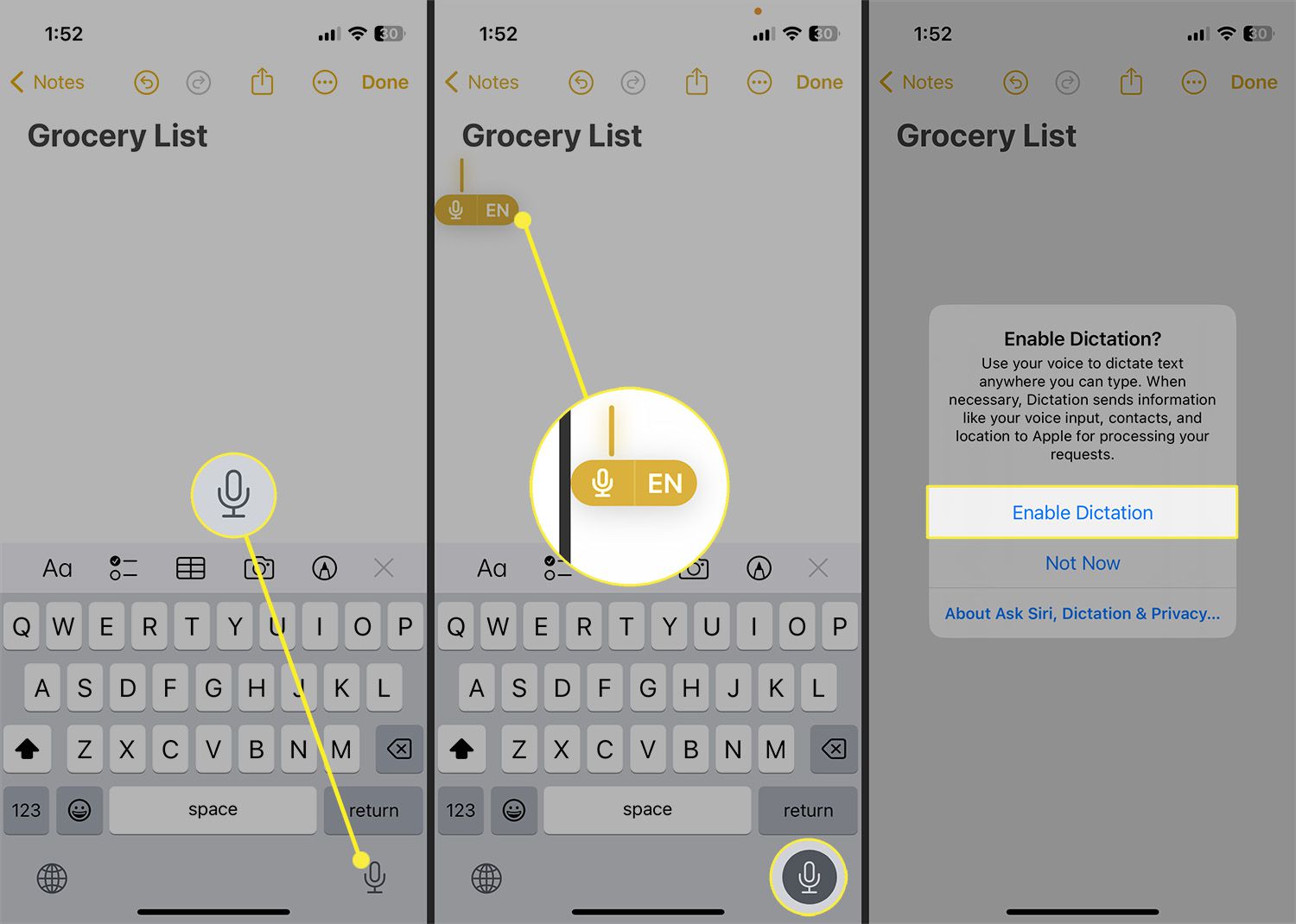
Display the on-screen keyboard by tapping a field that accepts text (such as an email or note).
-
Tap the microphone icon.
You may be prompted to enable dictation even if you turned it on from Keyboard settings. Tap Enable Dictation to confirm.
-
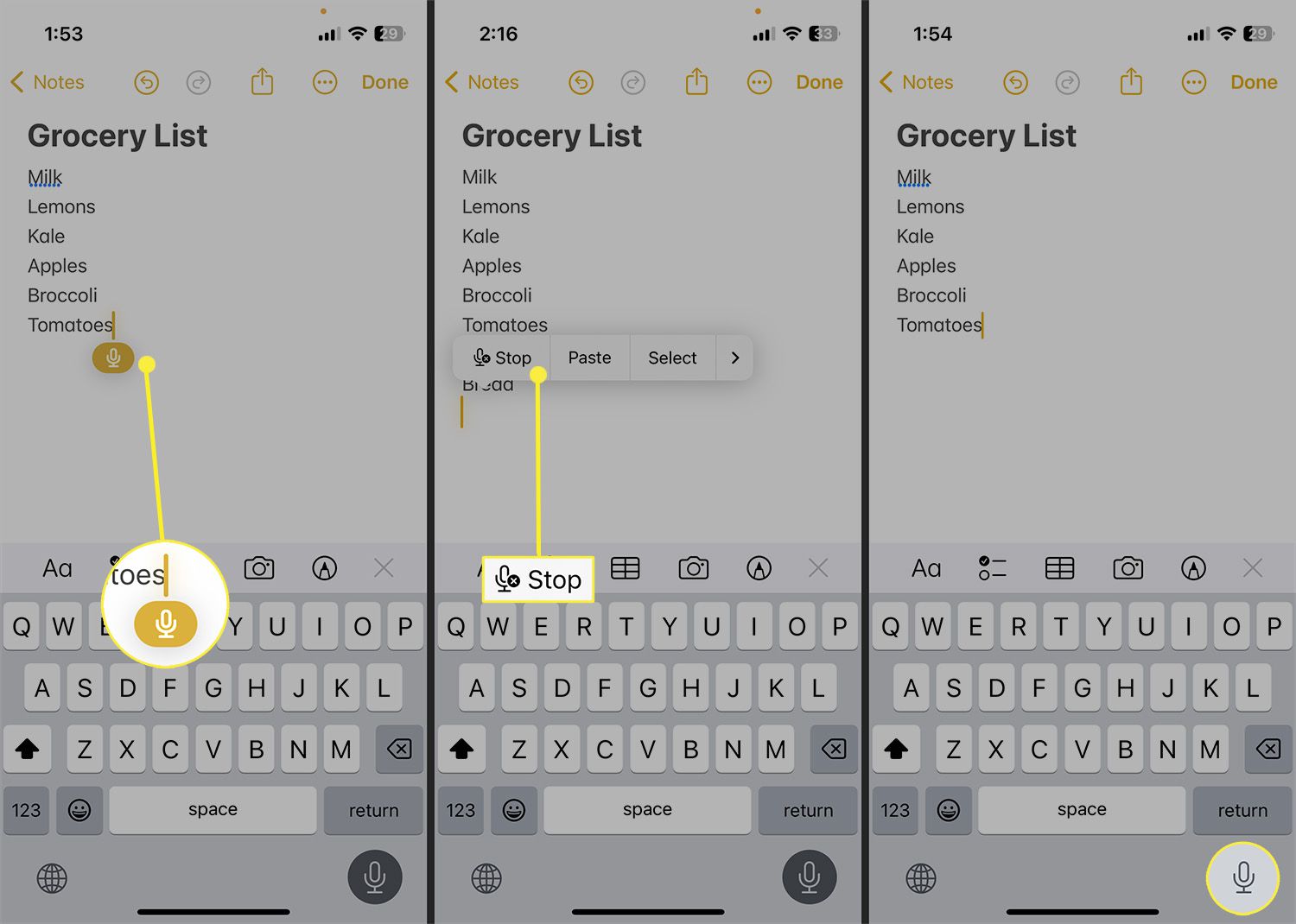
Start talking. The device listens to your voice and turns it into text as you speak.
Use keywords to insert punctuation or paragraph breaks as needed.
-
Tap the small microphone in the text field or keyboard, or tap an empty area in the text field > Stop to end dictation.
You may also see a keyboard icon as the prompt for stopping dictation. Dictation also times out after 30 seconds in iOS and iPadOS 16 or later.
-
Make adjustments to the text as necessary with the keyboard.
Add Punctuation With These Dictation Keywords
To get the most out of Dictation, use these keywords to add punctuation or line breaks:
- Period: The "." is the standard way to end a sentence.
- Question Mark: The "?" punctuation mark.
- New Paragraph: Starts a new paragraph. End the previous sentence before beginning the new paragraph.
- Exclamation Point: The "!" punctuation mark.
- Comma: The "," punctuation mark.
- Colon: The ":" punctuation mark.
- Semi-Colon: The ";" punctuation mark
- Ellipsis: The "..." punctuation mark
- Quote and Unquote: Puts quotation marks around words or phrases.
- Slash: The "/" symbol.
- Asterisk: The "*" symbol.
- Ampersand: The "&" symbol, which means "and."
- At Sign: The "@" symbol found in email addresses.
- Emoji: Say emoji names like "heart emoji."
Voice dictation automatically adds spaces after punctuation that needs it-periods, commas, and closing quotation marks, for example. You can turn off automatic punctuation from General > Keyboard > Automatic Punctuation.
How to Record Voice Memos on iPhone